Fillet
Round off the edges of a part. Pick edges one by one, or click a face for all of its edges.
- Fillet RPart workspace toolbar
| SchoolCAD | Onshape | Fusion | SOLIDWORKS |
|---|---|---|---|
| Fillet | Fillet | Fillet | Fillet |
A fillet rounds off an edge. In the workshop you would do it with a router and a round-over bit, a plane, a file or sandpaper. Rounded edges feel nicer in the hand, look finished, and are less likely to chip or splinter: think of the top of a step stool, the rails of a surf handplane, or the front edge of a phone stand.
The same dialog also makes a chamfer (a flat bevel) or an arris (a tiny bevel that just takes the sharp edge off).
How to use it#
- Click Fillet, or press R.
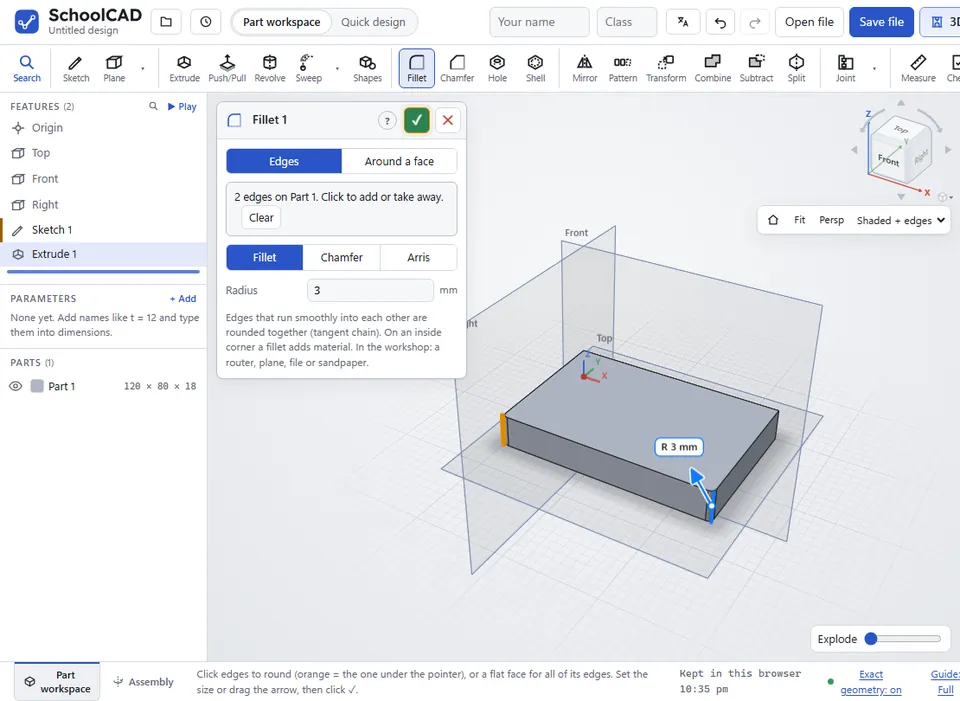
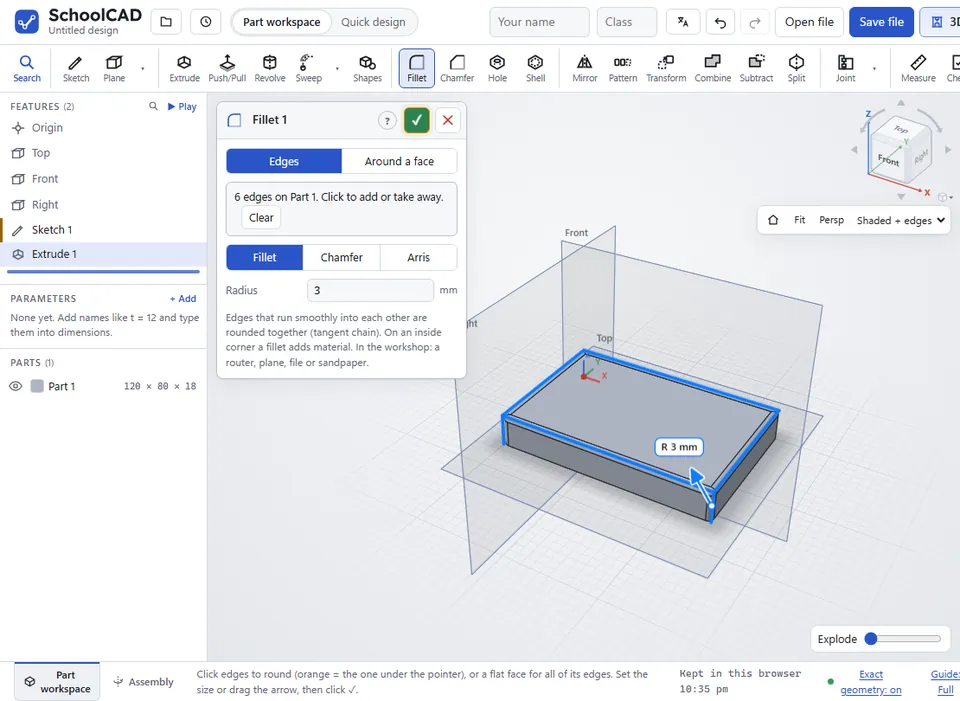
- Click the edges to round. An edge lights up orange when the pointer is on it. Click a flat face to pick all of its edges at once. Click an edge or a face again to take it away.
- Type the Radius, or drag the arrow on the rounded edge.
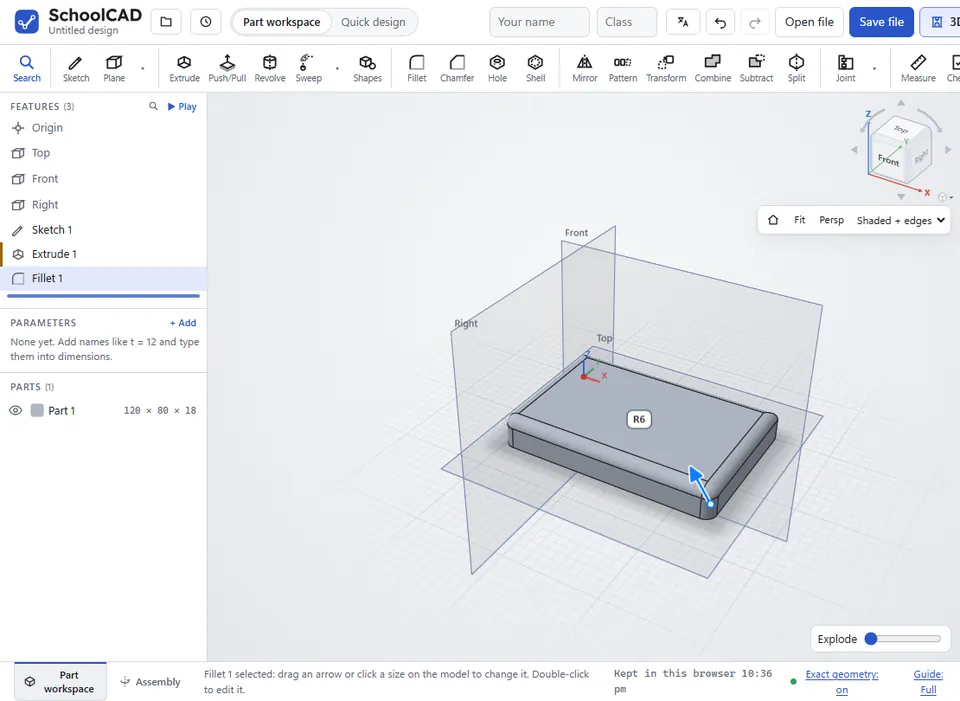
- Check the preview, then click ✓ or press Enter.
Step by step#
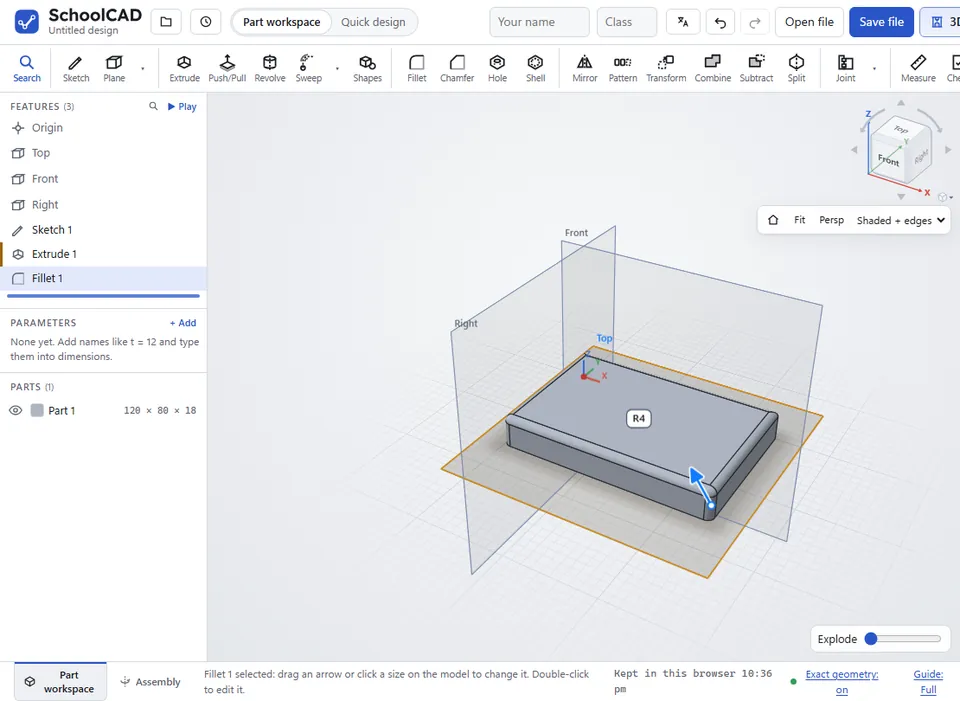
Here is the whole thing on a 120 × 80 × 18 mm board, from the SchoolCAD video tutorial.
Options#
| Option | What it does |
|---|---|
| Edges | Pick edges one by one, or click a flat face for all of its edges, holes too. Clear takes them all away. |
| Around a face | Click one flat face, and every edge around its outside is rounded, like running a router round it. Holes in the face stay sharp. |
| Fillet | A rounded edge (in timber: a round-over). |
| Chamfer | A flat bevel, its size set by the Distance, or by two distances or a distance and an angle (Chamfer type). See Chamfer. |
| Arris | A tiny 1 mm bevel that just takes the sharp edge off. It has no size to set. |
| Radius | How big the round is, in mm. |
| Fillet type | In Advanced mode. Constant size: the same radius all along. Variable size (with Edges): a radius that goes evenly from Radius 1 at one end to Radius 2 at the other (Onshape: Variable fillet · SOLIDWORKS: Variable Size Fillet); R1 and R2 in the view show which end is which, and ⇅ swaps them. Full round: a face becomes a half-round (Onshape: Full round · SOLIDWORKS: Full Round Fillet). |
A full round#
Choose Full round under Fillet type and click a flat face, such as the top of a wall or rib, or the end of a tab or strap. The face becomes a half-round that runs smoothly into the faces either side, so there is no radius to type: it is half the gap between those faces. When a face could round two ways (the end of a flat tab), it goes across the narrow way. Click more faces to round them too, or a face again to take it away.
The faces either side must be flat, face opposite ways and reach down at least half the width, so the round does not cut into what is below.
A fillet that changes size#
In Advanced mode, choose Variable size under Fillet type for a round that grows along an edge, such as a handle that is gentle at one end and fuller at the other, or the swept look of a car body. Edges that run smoothly into each other share one change of size, from one end of the run to the other. The bigger radius must fit at every point of the edge, so keep it smaller than the faces beside the edge.
Tips#
- Edges that run smoothly into each other are rounded together, so one click can go all the way along a curved outline.
- On an inside corner, a fillet adds material instead of taking it away.
- When you drag the arrow, the steps get smaller as you zoom in. Hold Shift for finer steps, or press Esc to put the size back.
- Picked edges are found again when earlier features change size. To change a fillet later, double-click it in the feature tree, or click it once in the tree and drag its arrow on the model.
- Edges needs the 3D engine. It starts by itself the first time, which takes a few seconds. If it cannot start on your computer, use Around a face.
- Use Arris where a timber plan says to take the sharp edges off.
If it does not work#
- A 6 mm fillet does not fit on this edge. Try a smaller size or fewer edges. The round is too big for the faces next to the edge.
- A 6 mm round-over is too big for this shape. Try a smaller size. The same problem with Around a face.
- A fillet from 2 to 30 mm does not fit on this edge. Try smaller sizes or fewer edges. With Variable size, the bigger radius is too big for the faces next to the edge.
- A full round needs two flat faces either side of the face, facing opposite ways, such as the sides of a wall or rib. The face picked for Full round has no flat sides facing each other.
- The faces either side are shorter than half the width (3 mm), so a full round does not fit there. The round would cut into what is below. Make the wall taller, or pick another face.
- Click the edges to round (or a flat face to pick all of its edges). No edges are picked yet.
- The 3D engine is not available here, so edges cannot be picked. Choose "Around a face".
- 2 edges were not found after an earlier change. Edit the fillet to pick them again. In the dialog they show as red dashed lines where they were. Click the edges to use now, then click Remove to drop the old ones.