Measure
Click faces, edges, corners and parts to see sizes, lengths, diameters, distances and angles, plus volume, mass, cost and where the centre of mass is.
- MeasurePart workspace toolbar, at the right
| SchoolCAD | Onshape | Fusion | SOLIDWORKS |
|---|---|---|---|
| Measure | Measure | Measure | Measure |
Measure tells you the real sizes of what you have made, without changing anything. Use it to check that a shelf fits, that a hole is the right size, how heavy your step stool will be, or whether your phone stand will tip over.
You do not always need the panel: as in SOLIDWORKS, the status bar at the bottom shows what you have selected measures. A part shows its size, volume and mass; a face its area (and size, if it is flat); in a sketch, a line its length, a circle its diameter, two points the distance between them and two lines the angle. Click it to open Measure.
In Advanced, the Measure ▾ menu also has Mass properties: the mass, surface area, centre of mass and moments of inertia, as Onshape and SOLIDWORKS report them.
How to use it#
- Click Measure in the toolbar. The Measure panel opens in the corner of the view.
- Click a face, an edge or a corner of a part. The panel shows the part and what you clicked. Corners and edges light up under the pointer: a dot on a corner, a thick line along an edge.
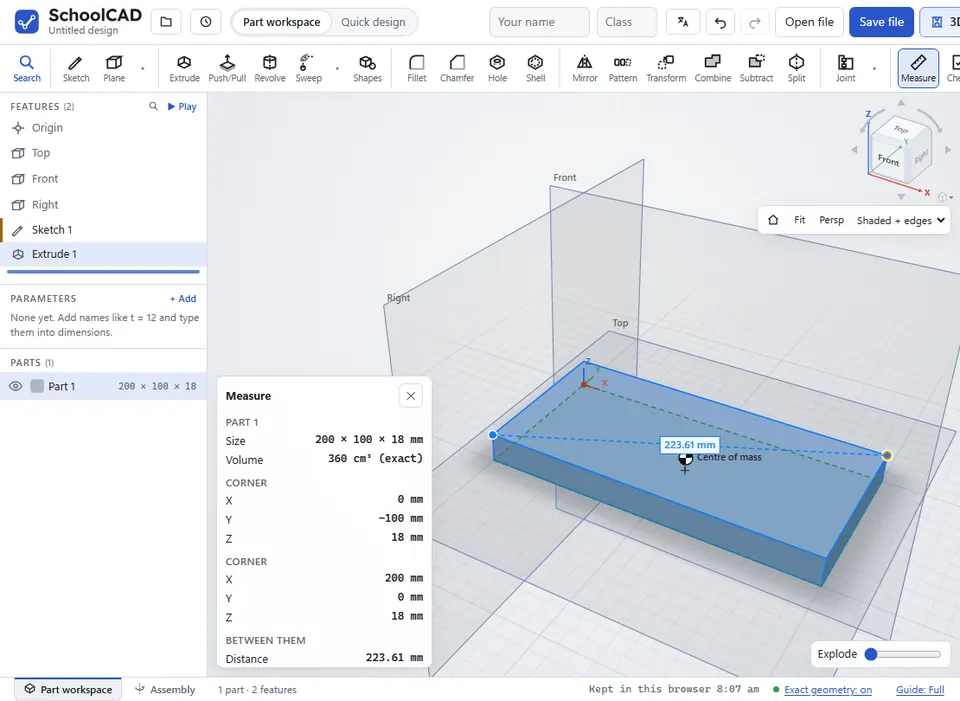
- To measure between two things, hold Shift and click a second one: two corners, a corner and an edge, an edge and a face, two hole rims, and so on. A dashed line joins the closest points.
- Click Measure again, or ✕ on the panel, to close it.
What it shows#
| You click | Measure shows |
|---|---|
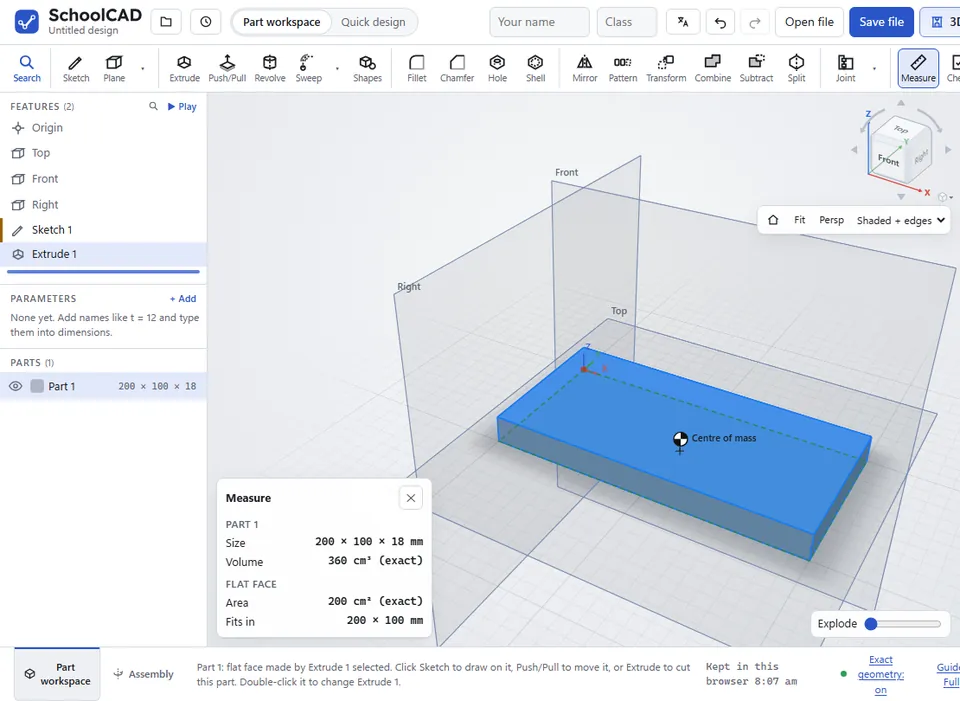
| A face | The part's Size (length × width × thickness), Volume, Mass and Cost (estimate). Then the face: Flat face or Curved face, its Area, and for a flat face the rectangle it Fits in and how many Holes it has. |
| A second face, with Shift | Between the two faces: the Distance between two parallel flat faces, or the Angle between two flat faces that are not parallel. Point to point is the distance between the two places you clicked. |
| A corner | Where it is: X, Y and Z from the origin. |
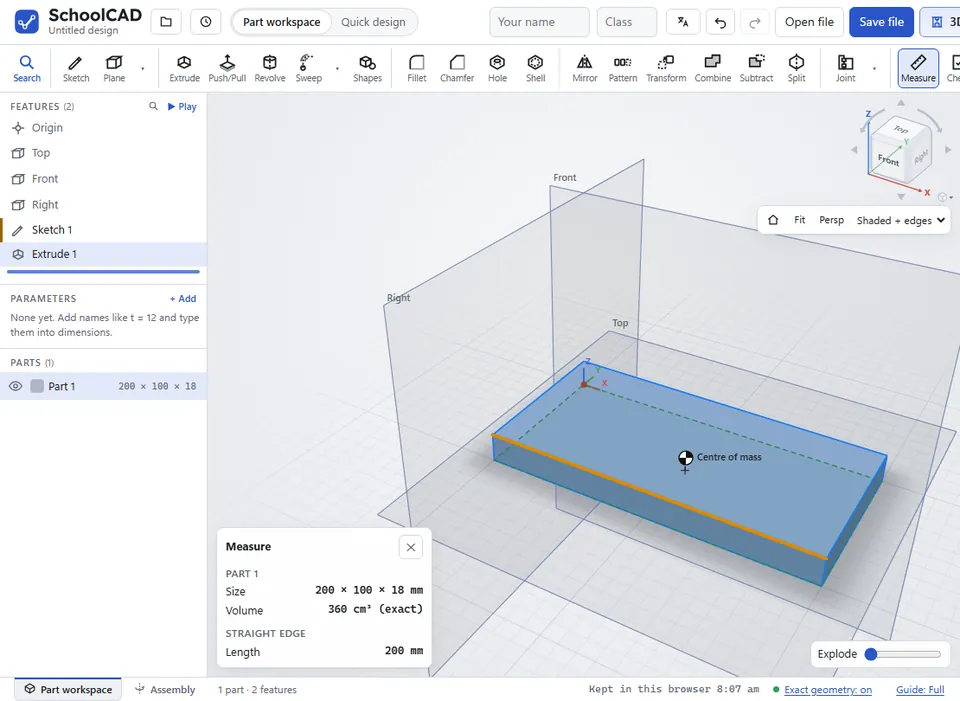
| A straight edge | Its Length. |
| A round edge, such as the rim of a hole | A Circular edge: its Diameter (and radius) and its Centre. An Arc (part of a circle, such as a rounded corner): its Radius, Arc length, Angle and Centre. |
| A curved edge, such as the top of a spline wall or an ellipse | When the 3D engine is on (the status bar says Exact geometry: on): a Curved edge or an Elliptical edge, with its exact Length. |
| Two things (corners, edges or faces), with Shift | Between them: the Closest distance. For two corners, the Distance and how far apart they are across (ΔX), back (ΔY) and up (ΔZ). Two straight edges give the Angle between them; a straight edge and a flat face, the Angle to the face; a corner and a flat face, the distance Square to the face; two round edges, Centre to centre; a corner and a round edge, To the centre. |
| Nothing | Whole design: its Mass, its Centre of mass (as X, Y and Z from the origin), and how far it can tilt before it tips over. |
While Measure is open, the view marks the centre of mass with a round symbol and draws a line straight down from it. If the design stands on a base, the base is outlined with a dashed line: green if the design is stable, red if it would fall over.
Exact geometry#
When the status bar says Exact geometry: on, Measure tells you more:
- the true kind of a curved face, such as Cylindrical face or Round-over (torus)
- the Diameter of a round face such as a hole, or the Radius of a rounded face
- the Included angle of a cone, such as a countersink
- exact areas and volumes, marked (exact)
- the Closest gap between two faces.
Step by step#
Here is the whole thing on a 200 × 100 × 18 mm shelf, from the SchoolCAD video tutorial.
Tips#
- Measure works like Measure in Onshape and SOLIDWORKS: click what to measure, Shift-click to measure between two. Corners and edges are easiest to click when you zoom in.
- Edges and corners cannot be picked while the view is exploded. Put the Explode slider back first.
- Mass and cost come from each part's material. Right-click a part to choose its material first.
- Cost is a classroom estimate, worked out from the part's material.
- Measure and Check share the corner of the view, so opening one closes the other.
- To see inside a joint or a groove before you measure it, use Section view.
- For the sizes of every part at once, export a cut list.
If it does not work#
- There is no Mass or Cost. The part's material is Not set. Right-click the part and choose a material.
- Two faces give no Distance. Distance is for two parallel flat faces. For other faces, use Point to point, or Closest gap when exact geometry is on.
- Nothing happens when I click Measure. Measure does not work while you are sketching. Finish the sketch first.