Loft
Blend smoothly between closed shapes on different planes, such as a round base that becomes square at the top.
- Loft LPart workspace toolbar
| SchoolCAD | Onshape | Fusion | SOLIDWORKS |
|---|---|---|---|
| Loft | Loft | Loft | Lofted Boss/Base Lofted Cut |
Loft makes a solid that changes shape as it goes, blending from one closed shape to the next. Draw a shape on each of two or more planes, and Loft joins them up smoothly. Use it for a lamp shade, a vase, a funnel, a tapered leg, or a bottle that is round at the bottom and square at the top.
How to use it#
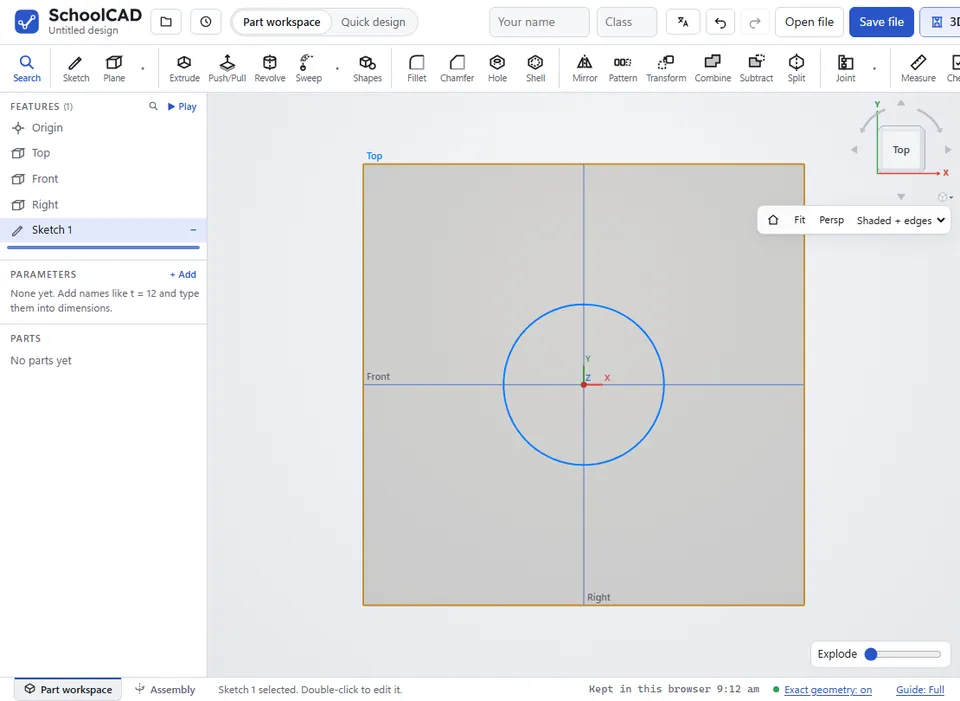
- Sketch the first shape, for example a circle on Top, and finish the sketch.
- Make a Plane above it, for example 120 mm up from Top.
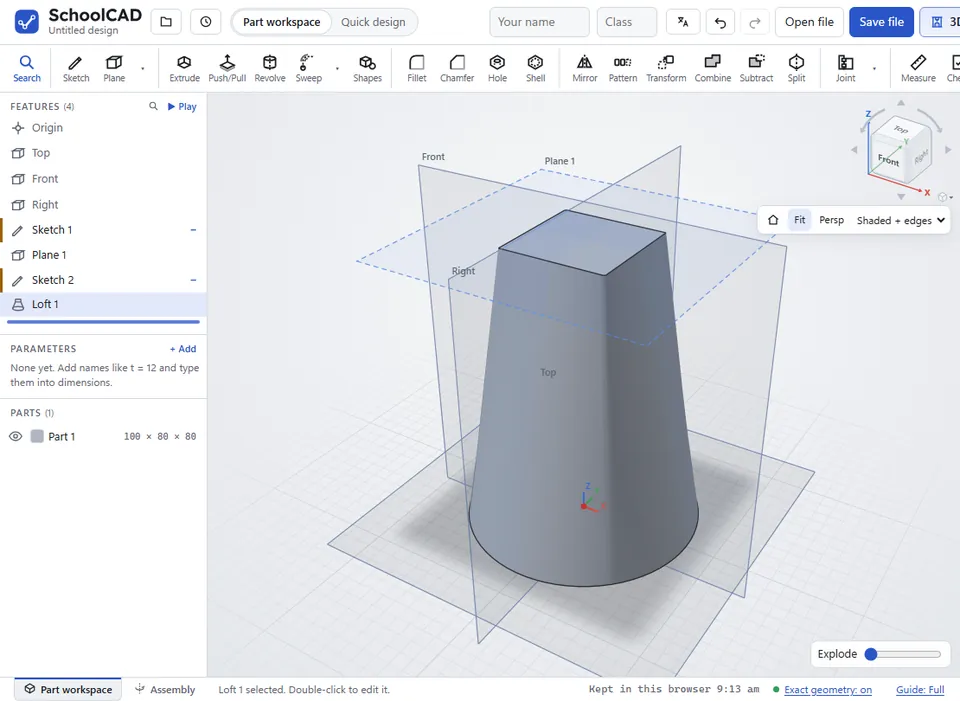
- Sketch the next shape on the new plane, for example a square, and finish the sketch. For more shapes, add more planes and sketches, in order.
- Click Loft, or press L. The two newest sketches are ticked for you.
- Under Profiles (bottom to top), tick the sketches to use.
- Choose New, Add, Remove or Intersect.
- Check the preview, then click ✓ or press Enter.
Step by step#
Here is the whole thing on a lamp shade, from the SchoolCAD video tutorial.


Options#
| Option | What it does |
|---|---|
| New | Makes a new part. Type a Part name (such as Lamp shade) and choose its Material. |
| Add | Joins the loft onto the parts it meets. |
| Remove | Cuts the loft out of the parts it meets. |
| Intersect | Keeps only the space where the loft and the part overlap. |
| Profiles (bottom to top) | The sketches to blend, each with the plane it is on. They are joined in the order they come in the feature tree, so draw them in order, from the bottom up. |
| Merge scope | For Add, Remove and Intersect. Merge with all ticked: it works on every part it meets. Untick it to tick just the parts to change. |
Tips#
- Shapes that are alike, with the same number of corners, loft most neatly.
- Each sketch gives one shape. If a sketch has more than one closed shape, Loft uses the biggest one.
- Holes inside a shape are left out. To make a loft hollow, such as a lamp shade or a vase, use Shell on it afterwards.
- To make a loft bulge out, like a vase, add a bigger shape on a plane in the middle.
- To make a loft taller or shorter, change the Distance of its plane. To change the loft itself, double-click it in the feature tree.
If it does not work#
- Draw a shape on two different planes first (use Plane to make a plane above the first one), then loft between them. Loft needs at least two sketches.
- Choose two or more sketches to blend between. Tick at least two sketches.
- The shapes are on the same plane. Put them on planes apart from each other. Make a Plane and draw the next shape on it.
- "Sketch 2" has no closed shape. Edit that sketch and join the ends of its lines.
- The loft came out inside out. Try drawing the shapes the same way round.