Polygon
Draw a shape with 3 to 24 equal sides, such as a triangle, hexagon or octagon, from its centre.
- Circumscribed polygonSketch toolbar: under the ▾ next to Polygon
- Polygon GSketch toolbar
| SchoolCAD | Onshape | Fusion | SOLIDWORKS |
|---|---|---|---|
| Circumscribed polygon | Circumscribed polygon | Circumscribed Polygon | Polygon (circumscribed circle) |
| Polygon | Inscribed polygon | Inscribed Polygon | Polygon |
Polygon draws a regular shape: every side is the same length. Use it for a hexagonal pencil holder, a triangular sign, an octagonal coaster, or a hexagon-shaped pocket that holds a nut.
How to use it#
- In a sketch, click Polygon, or press G.
- Click the centre. Try the origin.
- Click where one corner goes. This sets the size and which way the shape is turned.
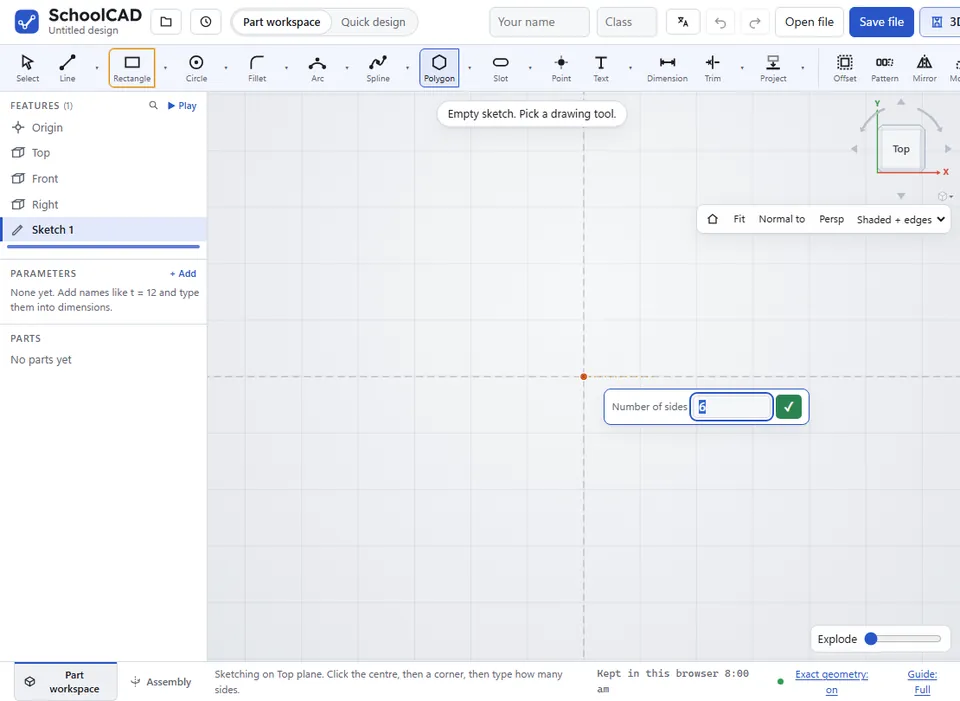
- Type how many sides (3 to 24) and press Enter. It starts at 6 (a hexagon), then remembers the last number you typed.
Circumscribed polygon (under the ▾ next to Polygon): click the centre, then the middle of a side instead of a corner. The size is then across the flats, as nuts, bolt heads and spanners are measured: an M6 nut is 10 mm across the flats. A dashed circle touches every side; dimension it for the size across the flats (SOLIDWORKS: Circumscribed circle · Fusion: Circumscribed Polygon).
What you get#
- Sides that stay equal (Equal constraints).
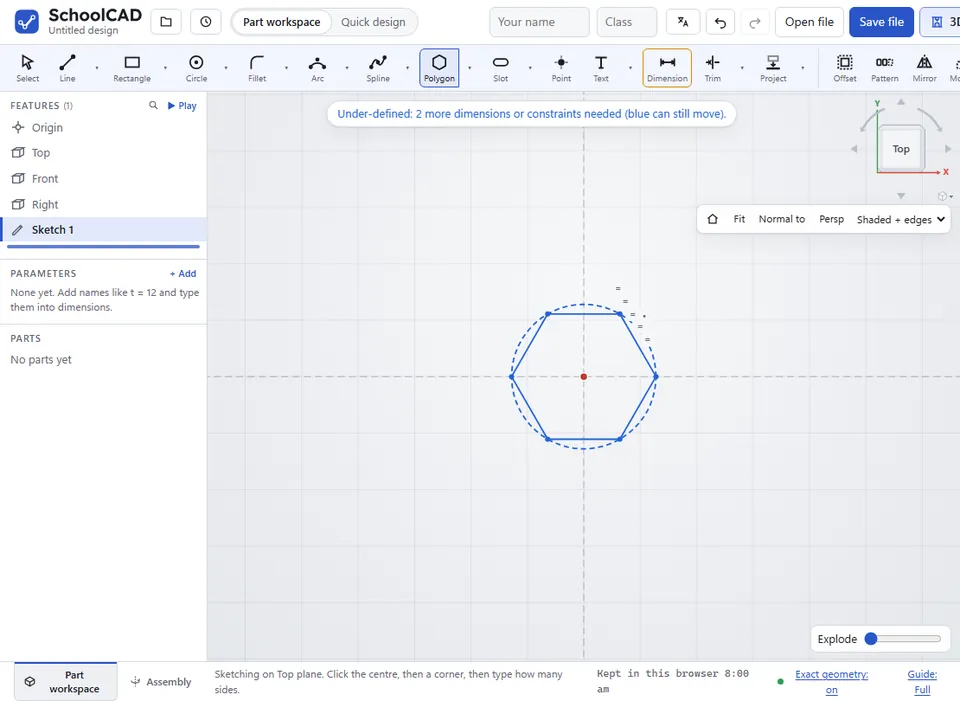
- Corners that sit on a dashed construction circle. The polygon fits inside the circle, touching it at every corner.
Making it exact#
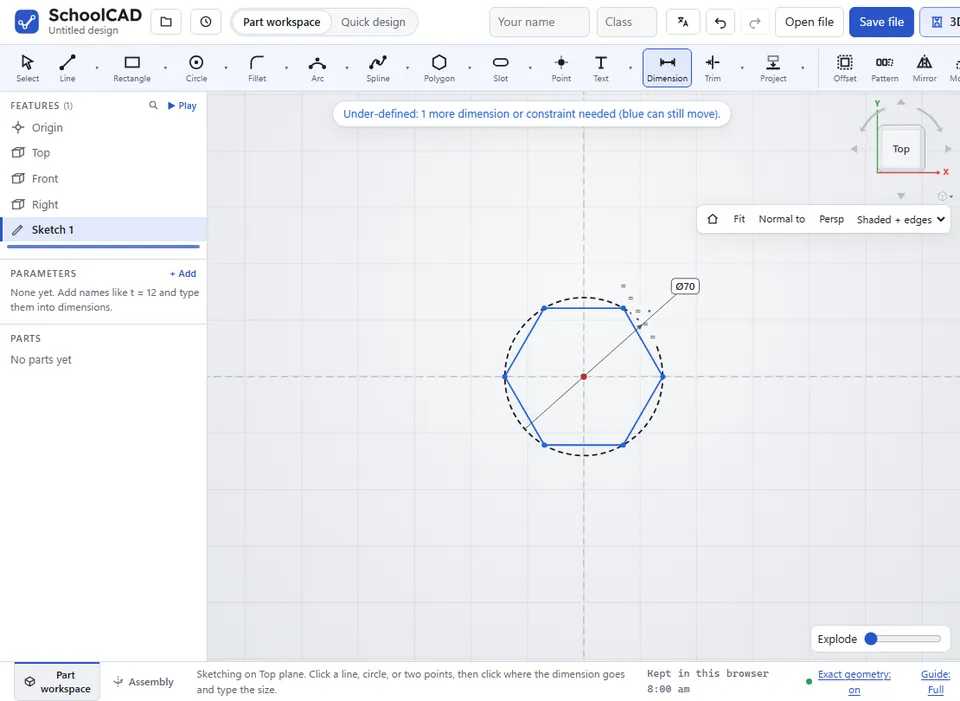
- Size across the corners: dimension the dashed circle. That gives its diameter.
- Size across the flats: for an even number of sides, such as a hexagon, click two opposite sides with Dimension.
- Not tilted: select one side and click Horizontal (H).
- In the right place: start it on the origin, or dimension its centre point from an edge.
Step by step#
Here is the whole thing on a hexagonal pencil holder, from the SchoolCAD video tutorial.

If it does not work#
- Choose 3 to 24 sides. Type a whole number from 3 to 24.