Sketch pattern
Repeat shapes in a sketch in a row or around a point, such as a row of holes or vents, with copies that follow the original.
- PatternSketch toolbar
| SchoolCAD | Onshape | Fusion | SOLIDWORKS |
|---|---|---|---|
| Pattern | Linear pattern Circular pattern | Rectangular Pattern Circular Pattern | Linear Sketch Pattern Circular Sketch Pattern |
In a sketch, Pattern makes evenly spaced copies of shapes: a row of holes for shelf pins, slots for an air vent, or points around a circle for the holes in a speaker grille. The copies are tied to the original, so when you change the original or the spacing, they all follow. To repeat a 3D feature or a whole part instead, use Pattern in the Part workspace.
In a row#
- With Select, click the shapes to repeat. Shift-click to add more, or drag a box.
- To set the direction, Shift-click a line last (a construction line works well). With no line, the copies go in a horizontal row.
- Click Pattern, then In a row (linear pattern).
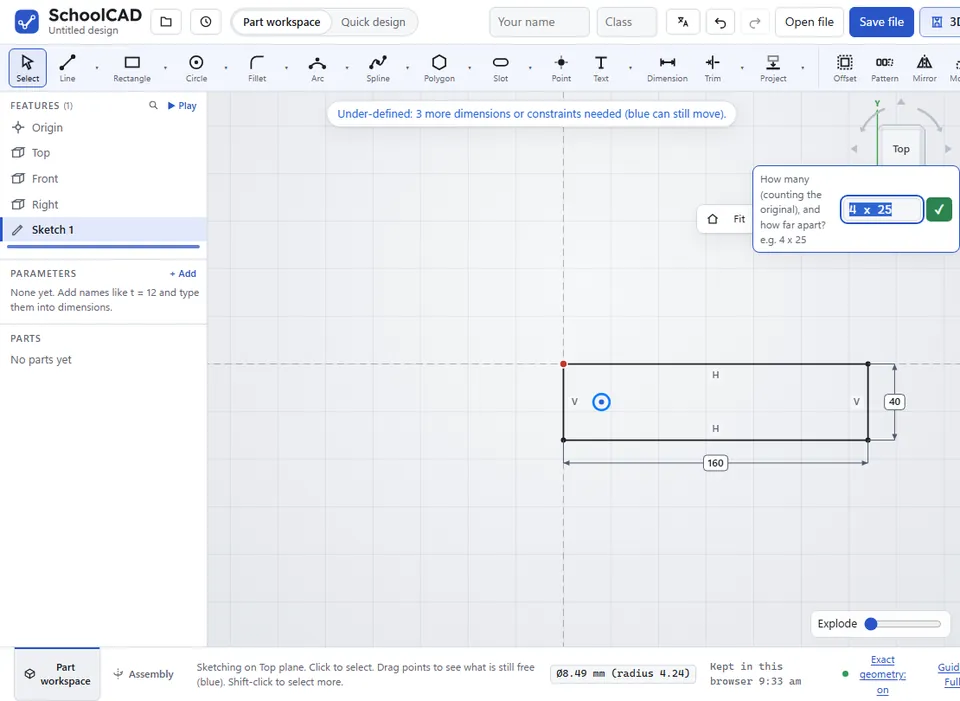
- Type how many (counting the original) and how far apart, such as
4 x 25, and press Enter.
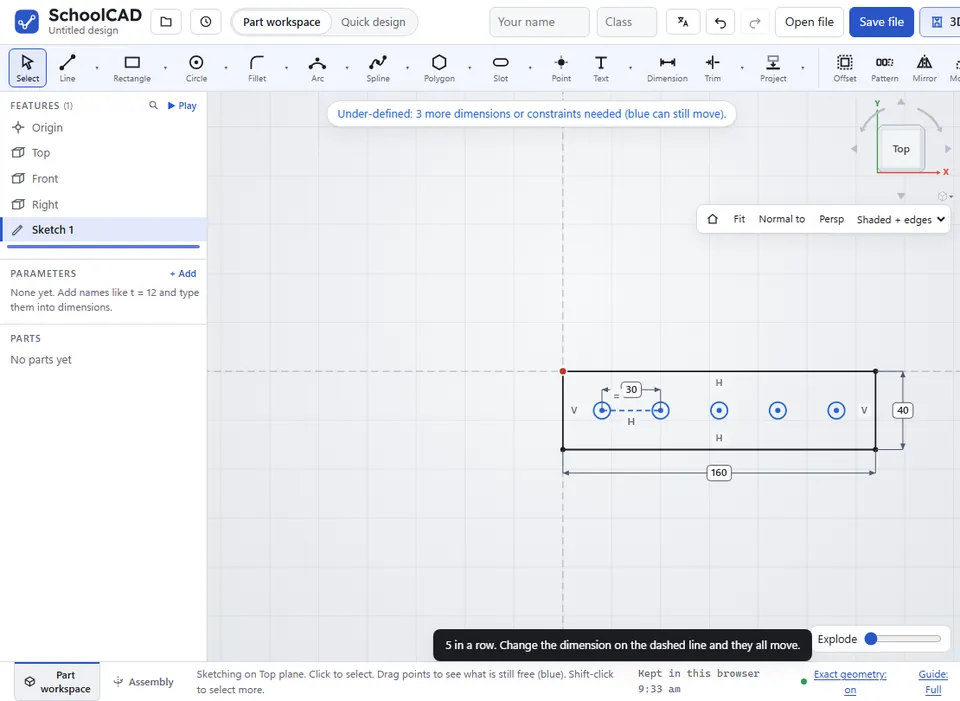
The copies are tied together by a dashed line from the original to the first copy, with the spacing as its dimension. Double-click that dimension to change the spacing, and every copy moves.
Around a point#
- Select the shapes to repeat.
- To set the centre, Shift-click a point last. With no point, the copies go around the origin.
- Click Pattern, then Around a point (circular pattern).
- Type how many around a full turn (counting the original), such as
6, and press Enter.
The copies are spaced evenly around a full circle.
Step by step#
Here is the whole thing on a plate with a row of holes, from the SchoolCAD video tutorial.

Tips#
- You can have 2 to 60, counting the original.
- If a row goes the wrong way, press Ctrl+Z and type the spacing with a minus sign, such as
4 x -25. - Pattern some points, then use Hole to put a hole at each one.
- Copied circles are Equal to the original: change its diameter and they all change.
If it does not work#
- Select the shapes to repeat first (Shift-click, or drag a box). Shift-click a line last to repeat along it.
- Type how many, counting the original (2 to 60).
- Type the spacing too, e.g. 4 x 25. For a row, type the number and the spacing.