Offset
Copy lines, arcs, a circle or an ellipse a set distance away: the walls of a box, a clearance gap, or a border.
- OffsetSketch toolbar
| SchoolCAD | Onshape | Fusion | SOLIDWORKS |
|---|---|---|---|
| Offset | Offset | Offset | Offset Entities |
Offset copies a shape a set distance away, like tracing round it with a spacer. Use it for the walls of a box (an outline, and a second one 3 mm inside it), a clearance gap around a part that slots in, or a border on a sign.
How to use it#
- With Select, click the lines, arcs or circle to copy. Shift-click to pick more, or drag a box. A closed shape works best.
- Click Offset in the sketch toolbar.
- Type the distance in mm and press Enter. A plus number goes outwards; a minus number, such as
-3, goes inwards.
Step by step#
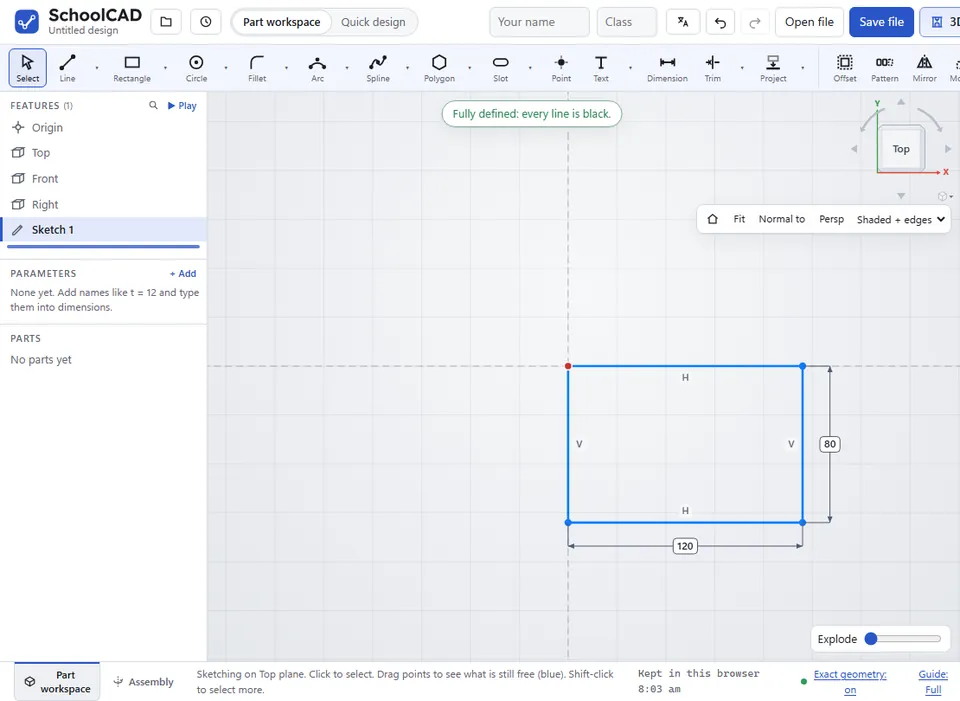
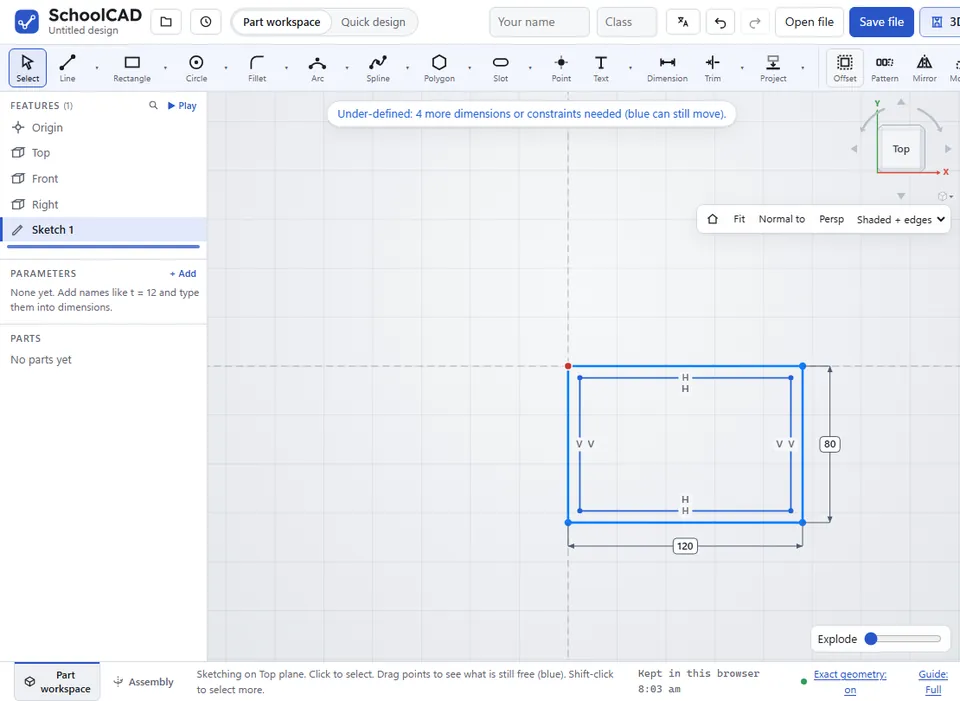
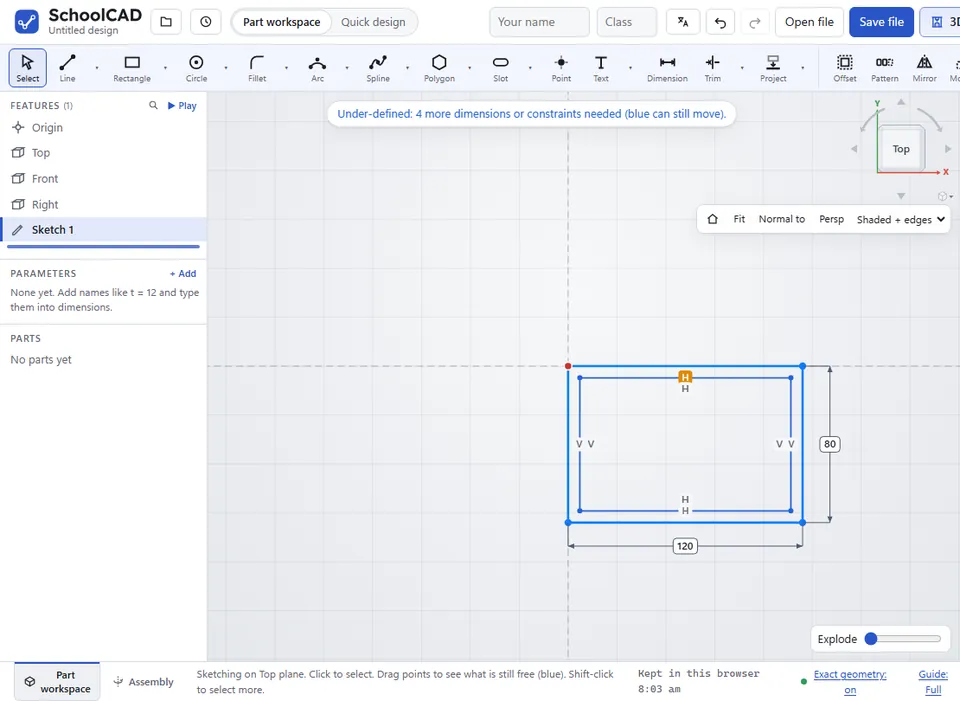
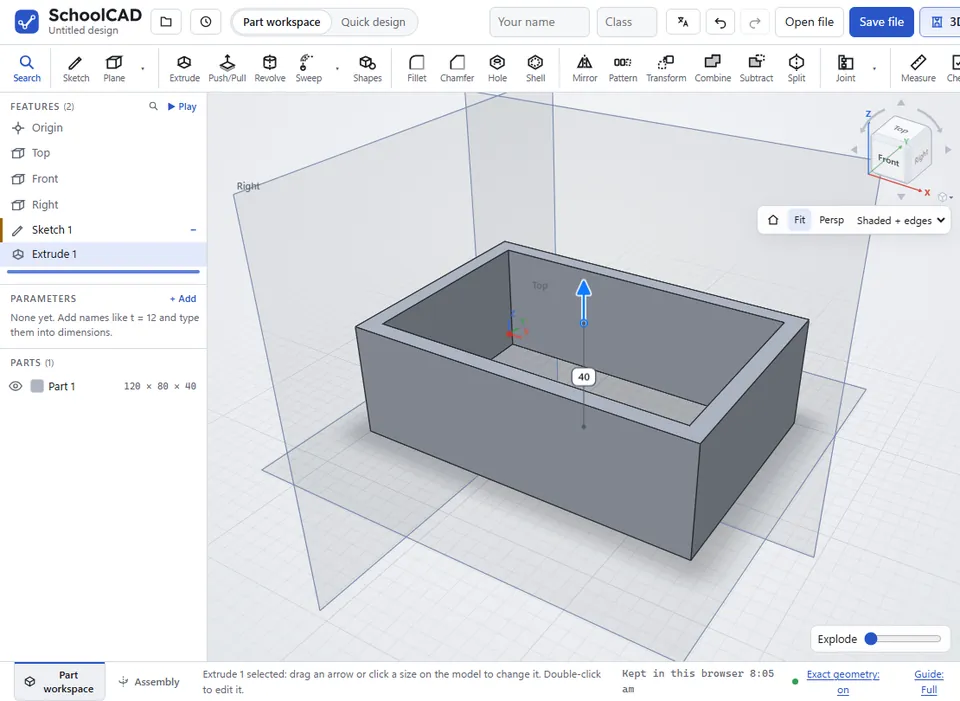
Here is the whole thing on the walls of a tray, from the SchoolCAD video tutorial.
Tips#
- For a closed shape or a circle, plus is always outwards and minus inwards. For a chain of lines that is not closed, the copy may land on the wrong side: press Ctrl+Z and type the distance with the other sign.
- The copy is a separate shape. It is not tied to the original by dimensions, so add dimensions between them (such as from a line to its copy) to keep the gap exact. A copied circle does keep the same centre as the original.
- The space between an outline and its offset is one shape: extrude it to make a wall.
- An offset of an ellipse or an elliptical arc stays tied to it: change the ellipse and the offset follows. It gets a dimension for its distance; double-click that to change it. The offset of an elliptical arc has its own two ends, beside the arc's ends, ready to join with lines into a curved strip.
- An offset of an ellipse is not an ellipse, so it comes out in STEP files as a smooth curve fitted through the true offset within about 0.0001 mm. Inwards it cannot go further than the ellipse's tightest bend.
- To hollow out a 3D part with even walls, Shell can be quicker.
If it does not work#
- Select the lines, arcs or circle to offset first (Shift-click to pick several).
- Those pieces do not join up into one chain. Select one connected shape.
- That would make a circle smaller than nothing. Use a smaller distance.
- Type a distance that is not 0.
- That is further in than the tightest bend of the ellipse. Use a smaller distance. Inwards, the offset would fold over itself at the ends of the long axis.