Transform
Move, turn, scale or copy parts by exact distances, angles and scale factors.
- Transform TPart workspace toolbar
| SchoolCAD | Onshape | Fusion | SOLIDWORKS |
|---|---|---|---|
| Transform | Transform | Move/Copy | Move/Copy Bodies |
Transform moves parts by exact amounts. You type how far to move them across, back or up, and how many degrees to turn them, and by how much to scale them. Tick Copy part to leave the parts where they are and make moved copies, such as a second shelf or a spare leg.
Transform is a feature in the feature tree, so you can change its numbers later.
How to use it#
- Click Transform, or press T. Parts you selected first are already ticked.
- Tick the parts under Parts to transform, or click them in the view.
- Under Translate by XYZ, type the distances in X (across), Y (back) and Z (up).
- To turn the parts, type an Angle under Rotate and choose the Axis: X, Y, Z, or Edge or axis and click an edge (such as the hinge edge of a box lid) or a round face (for its axis).
- To make the parts bigger or smaller, type a Scale under Scale uniformly, such as
2for twice the size or0.5for half, and choose what it scales about. - To leave the parts where they are and move copies of them, tick Copy part.
- Check the preview, then click ✓.
Step by step#
Here is the whole thing on a shelf, from the SchoolCAD video tutorial.
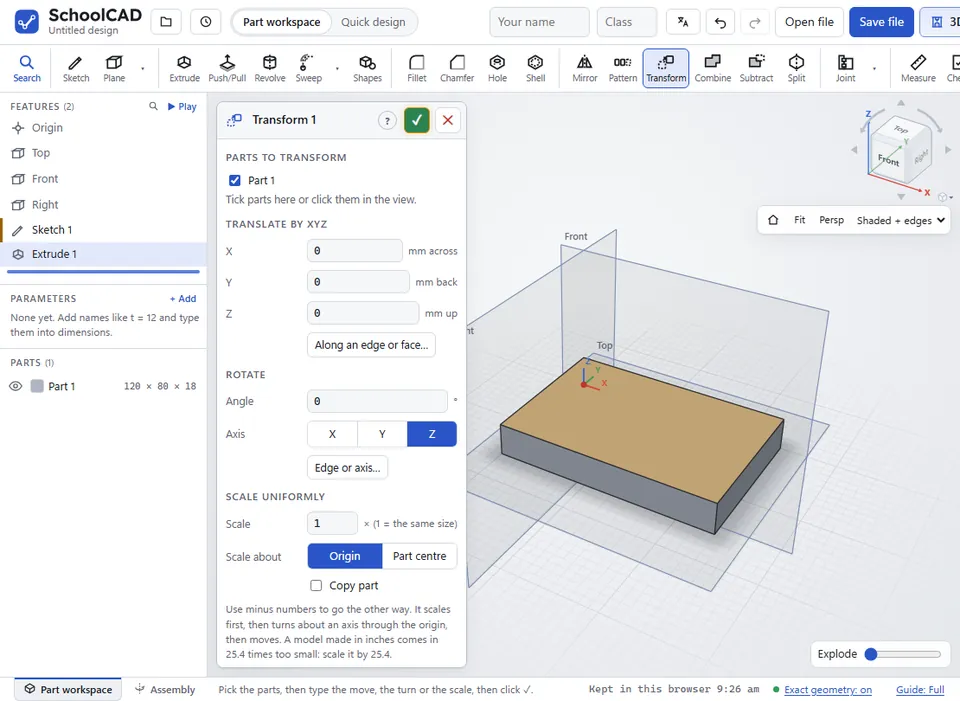
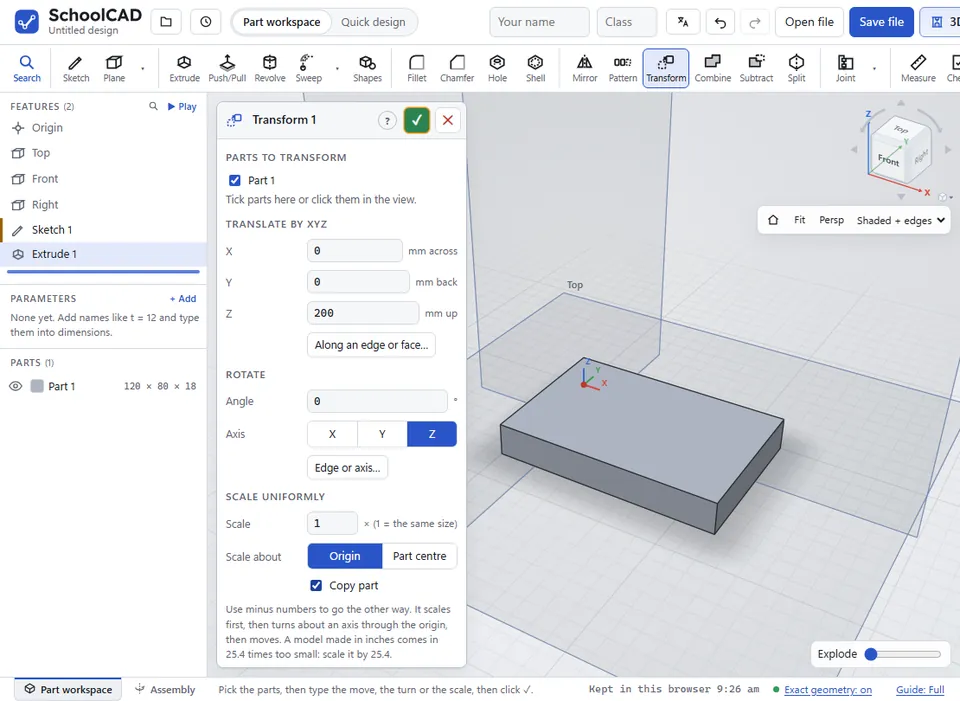
200 for Z) and tick Copy part to leave the original.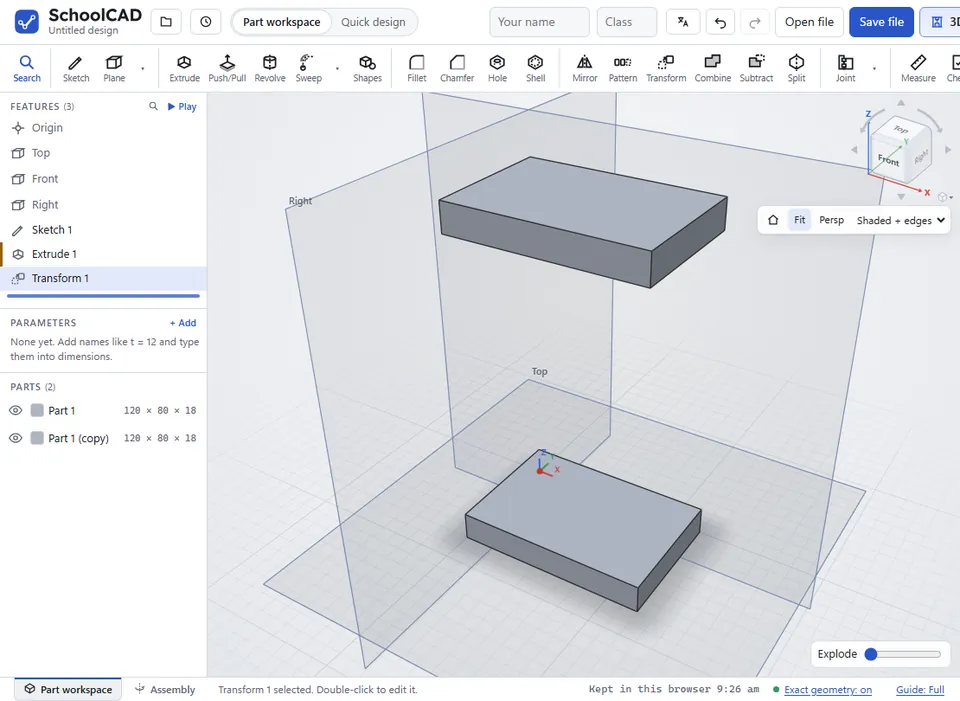
Options#
| Option | What it does |
|---|---|
| Parts to transform | The parts to move or turn. Tick them, or click them in the view. |
| X | Under Translate by XYZ: moves left or right (across), in mm. |
| Y | Under Translate by XYZ: moves to the back or the front, in mm. |
| Z | Under Translate by XYZ: moves up or down, in mm. |
| Along an edge or face… | Also moves the parts a Distance along an edge you click, square to a flat face, or along a round face's axis (Onshape: Translate by distance). ⇅ sends it the other way; ✕ stops it. |
| Angle | Under Rotate: turns the parts, in degrees. |
| Axis | Under Rotate: the line the parts turn around. X, Y or Z go through the origin (the point 0, 0, 0). Edge or axis: click a straight edge to turn about it (to open a box lid about its hinge edge), a round face to turn about its axis, or a flat face to turn about a line square to it through its middle (Onshape: Rotate about an axis · SOLIDWORKS: Move/Copy Bodies, rotate about an edge). ⇅ turns the other way. |
| Scale | Under Scale uniformly: how many times bigger, the same in every direction. 2 doubles every size (and makes it 8 times as heavy), 0.5 halves it, 1 leaves it. (Onshape: Scale uniformly · SOLIDWORKS: Scale) |
| Scale about | Origin: everything grows away from the origin (0, 0, 0), or shrinks towards it. Part centre: each part grows or shrinks about its own middle, so it stays where it is. |
| Copy part | Ticked: makes copies in the new place and leaves the parts where they were. Each copy's name ends in (copy). Not ticked: the parts themselves move. |
Tips#
- Type a minus number, such as
-50, to go the other way: left, to the front, or down. - You can type sums and parameter names, such as
400-19ort. - A model made in inches that comes in tiny (25.4 times too small) is fixed with a Scale of
25.4. - The parts scale first, then turn, then move. They turn around an axis through the origin, so a part on the origin turns on the spot, but a part far from the origin swings round as it turns.
- To put a part against another part, and keep it there when sizes change, use Mate. Transform always moves by the numbers you typed.
- For a row of copies, use Pattern. For a mirror-image copy, use Mirror.
- Transform is handy for putting imported parts in place.
If it does not work#
- Choose the part(s) to move or copy. Tick a part, or click one in the view.
- The part swings away when it turns. It turns around the origin, not around its own middle. Choose Edge or axis and click an edge of the part to turn it about that edge, add distances to bring it back, or use Mate to place it.
- The edge or face for the axis to turn about has gone. An earlier change took that edge away. Edit the transform and click an edge again.
- It goes the wrong way. Put a minus sign in front of the number, or take it away.
- The scale must be more than 0. Type a scale such as
2or0.5. To flip a part over, use Mirror.