Sketch fillet and chamfer
Round off a sharp corner of a sketch with Fillet, or cut it off at an angle with Chamfer.
- Fillet FSketch toolbar
- ChamferSketch toolbar: under the ▾ next to Fillet
| SchoolCAD | Onshape | Fusion | SOLIDWORKS |
|---|---|---|---|
| Fillet | Fillet (sketch) | Sketch Fillet | Sketch Fillet |
| Chamfer | – | – | Sketch Chamfer |
In a sketch, Fillet rounds a sharp corner where two lines meet: the round corners of a coaster, the base of a phone stand or a box lid. Chamfer cuts the corner off with a short straight line instead. Both change the 2D sketch. To round or bevel the edges of a 3D part, use Fillet or Chamfer in the Part workspace.
How to use it#
- In a sketch, click Fillet, or press F. For a chamfer, choose Chamfer from the ▾ next to Fillet.
- Click the corner point where the two lines meet.
- Type the radius (Fillet) or how far back to cut (Chamfer), and press Enter.
- Click the next corner. The tool stays on until you press Esc.
SchoolCAD remembers the last size you typed, so several corners the same size are quick to do.
What you get#
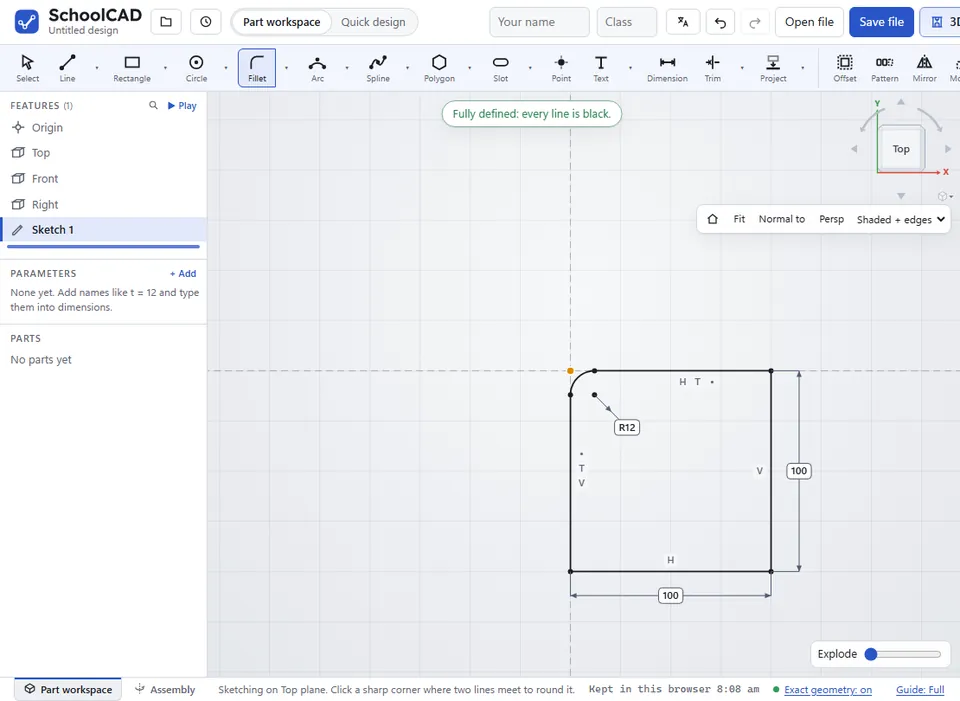
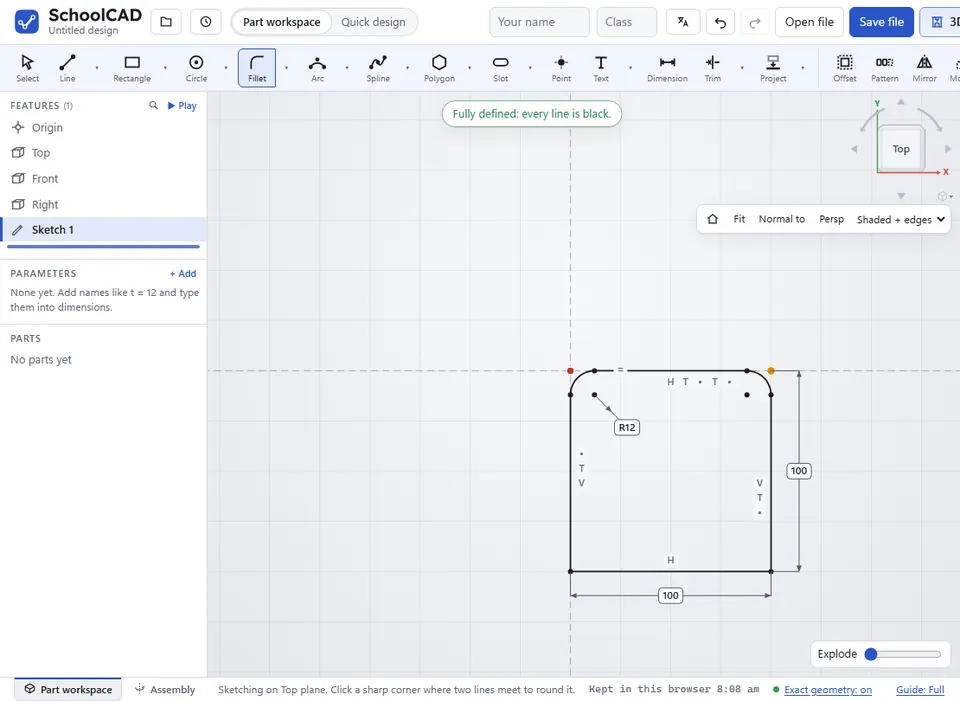
- Fillet: an arc that meets both lines smoothly, with a radius dimension. If another arc in the sketch already has a radius dimension of the same size, the new arc is made Equal to it instead: change that one radius and both change.
- Chamfer: a short line across the corner, with a dimension along each line from the old corner. Both start the same. Change one of them to cut back more on one side.
- The old sharp corner stays as a small point, so dimensions to it still work. A length dimension on a line that got shorter now measures to that corner, so your overall sizes stay the same.
Step by step#
Here is the whole thing on a coaster, from the SchoolCAD video tutorial.

If it does not work#
- Click a corner point where two lines meet. You clicked away from a corner.
- Fillet needs a corner where exactly two lines meet (or Chamfer needs…). Both tools only work where two straight lines meet: not a line and an arc, and not three lines.
- That radius is too big for these lines (Fillet) or That is too far for these lines (Chamfer). The message says the largest size that fits. Type a smaller size, or make the lines longer.
- Those lines are in a straight line, so there is no corner to round (or to cut). The two lines carry straight on, so there is nothing to change. Click a real corner.