Slot
Draw a slot with a round end on each side: for bolts that slide, adjustable parts and cable holes.
- Arc slotSketch toolbar: under the ▾ next to Slot
- Slot OSketch toolbar
| SchoolCAD | Onshape | Fusion | SOLIDWORKS |
|---|---|---|---|
| Arc slot | Slot along an arc | Center Point Arc Slot | Centerpoint Arc Slot |
| Slot | Slot | Center to Center Slot | Straight Slot |
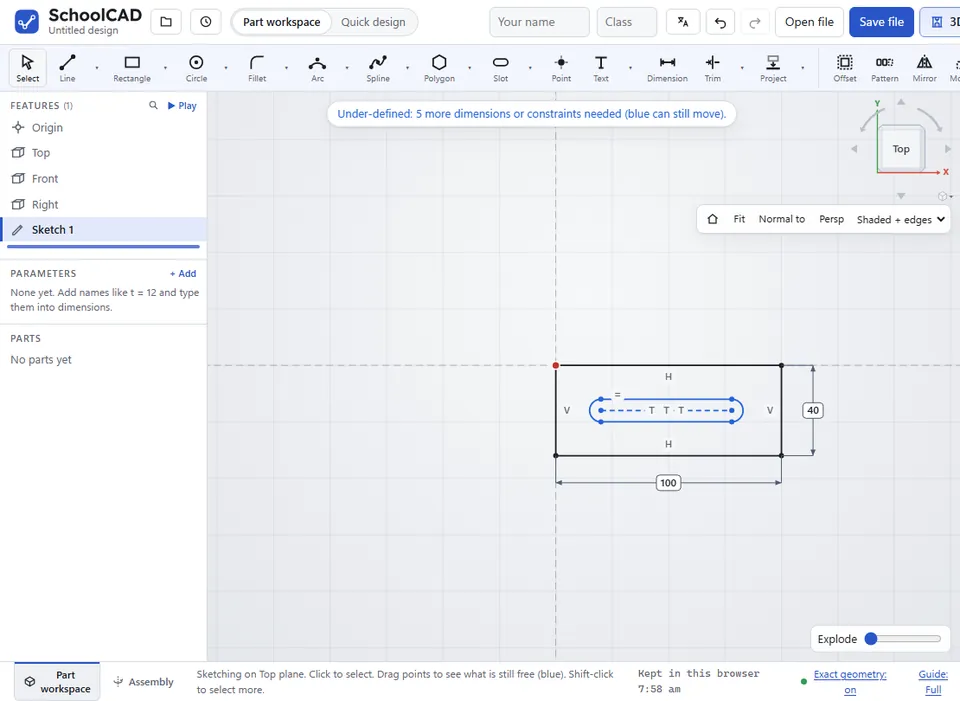
A slot is a straight shape with a round end at each side, like a stretched circle. Cut it right through a part so a bolt can slide along it: an adjustable lamp arm, a tilting phone stand, or a slot for a cable to pass through.
How to use it#
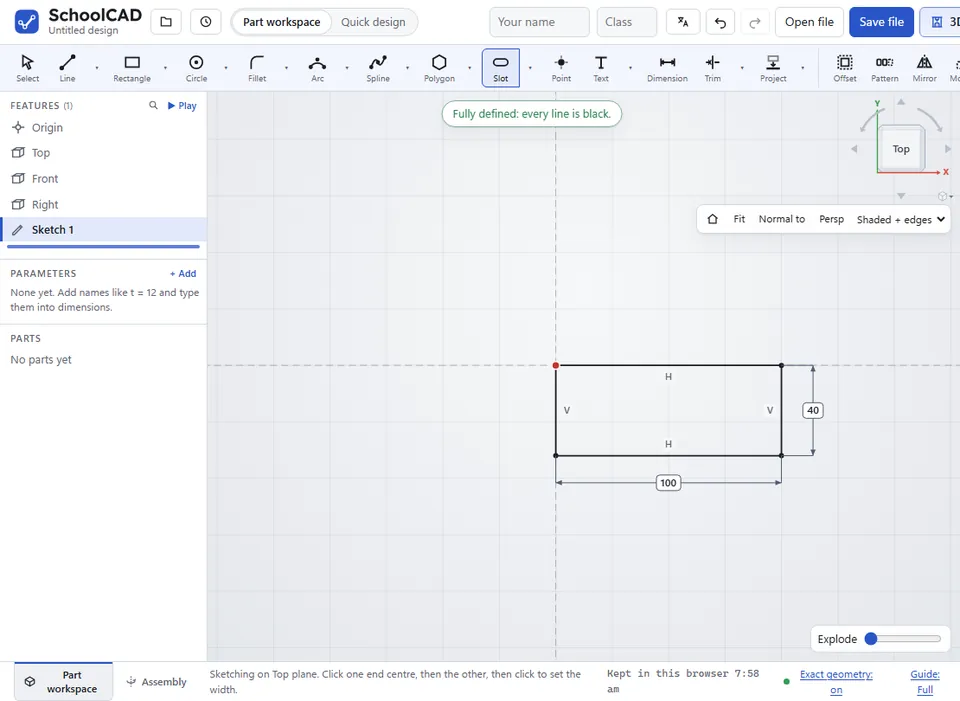
- In a sketch, click Slot, or press O.
- Click the centre of one round end.
- Click the centre of the other round end.
- Move out from the line between them and click to set the width.
Then extrude it with Remove to cut the slot.
Arc slot#
An arc slot follows a curve, so a bolt can slide round it: a lamp arm that tilts, a hinge that locks at an angle, or a protractor-style adjuster. Choose Arc slot from the ▾ next to Slot, then:
- Click the centre the slot curves round (the pivot).
- Click where the slot starts. This sets how far it is from the pivot.
- Click where it ends, going anticlockwise round.
- Move out or in and click to set the width.
You get an arc each side and a round end at each end, all joining smoothly. Dimension the width (a round end's diameter), the radius of an arc and the angle it turns through (SOLIDWORKS: Centerpoint Arc Slot · Fusion: Center Point Arc Slot).
What you get#
- Two straight sides and two round ends that meet smoothly (Tangent constraints).
- Round ends that stay the same size (Equal).
- A dashed construction line between the centres of the two ends.
Making it exact#
- Dimension the dashed line to set how far apart the two end centres are. That is how far a bolt can slide.
- Dimension one round end for its radius (half the width), or click the two straight sides with Dimension to set the width.
- Place it with a dimension from an edge to an end centre. Make the dashed line Horizontal (H) or Vertical (V) if the slot should be level or upright.
Step by step#
Here is the whole thing on an adjustable arm, from the SchoolCAD video tutorial.

If it does not work#
- Click two different ends for the slot. The two end centres were in the same place.