Sweep
Send a closed shape along a path of lines, arcs or a spline to make handles, rails, pipes, rings and frames.
- Sweep WPart workspace toolbar
| SchoolCAD | Onshape | Fusion | SOLIDWORKS |
|---|---|---|---|
| Sweep | Sweep | Sweep | Swept Boss/Base Swept Cut |
Sweep moves a closed shape along a path and leaves a solid behind it, like icing squeezed along the top of a cake. Use it for a bent handle, a towel rail, a curved pipe, a ring, or a moulding around a picture frame.
You need two sketches:
- The sweep path: joined lines, arcs or a spline. It can be open, like a handle, or closed, like a frame.
- The profile: a closed shape, such as a circle or a rectangle, on a plane square to the start of the path.
How to use it#
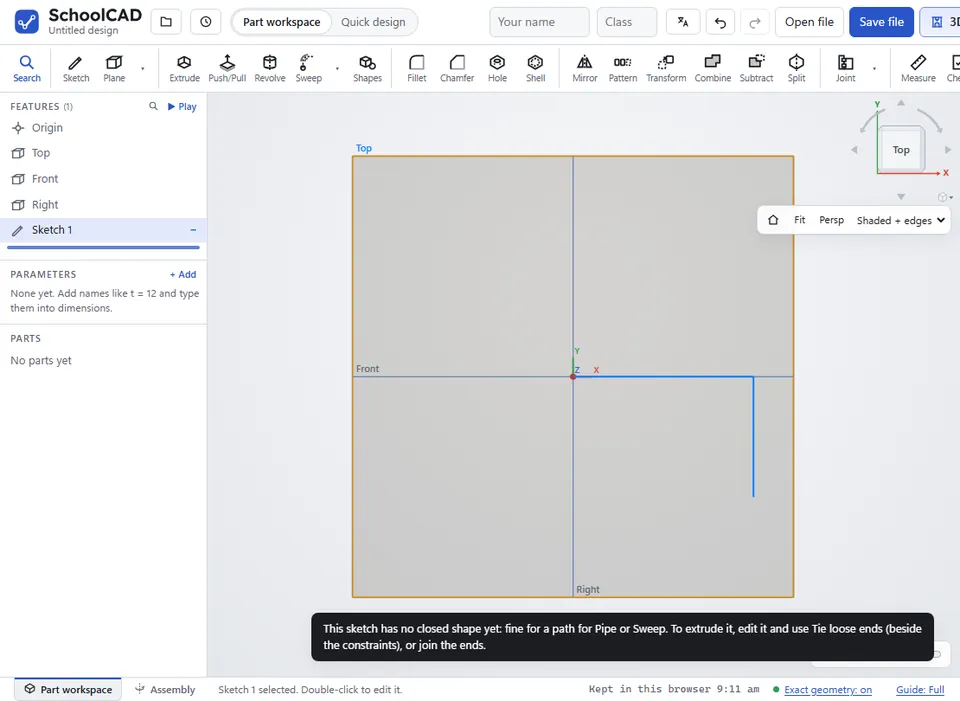
- Sketch the path, for example on Top, and click ✓ Finish sketch.
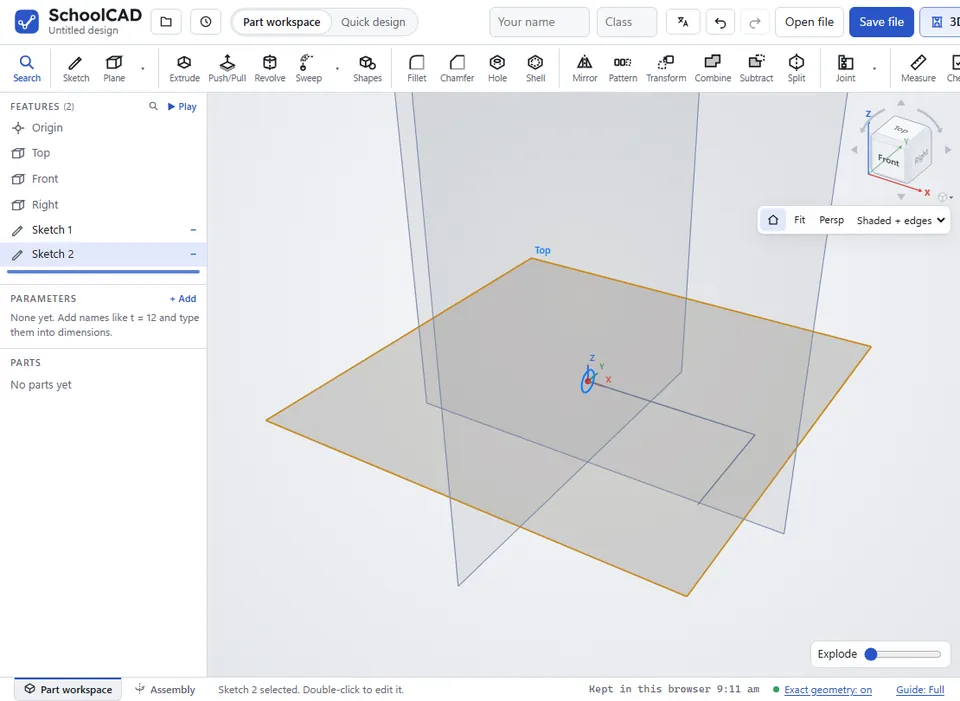
- Sketch the shape on a plane square to the path, for example on Front or Right, sitting across the start of the path. Finish the sketch.
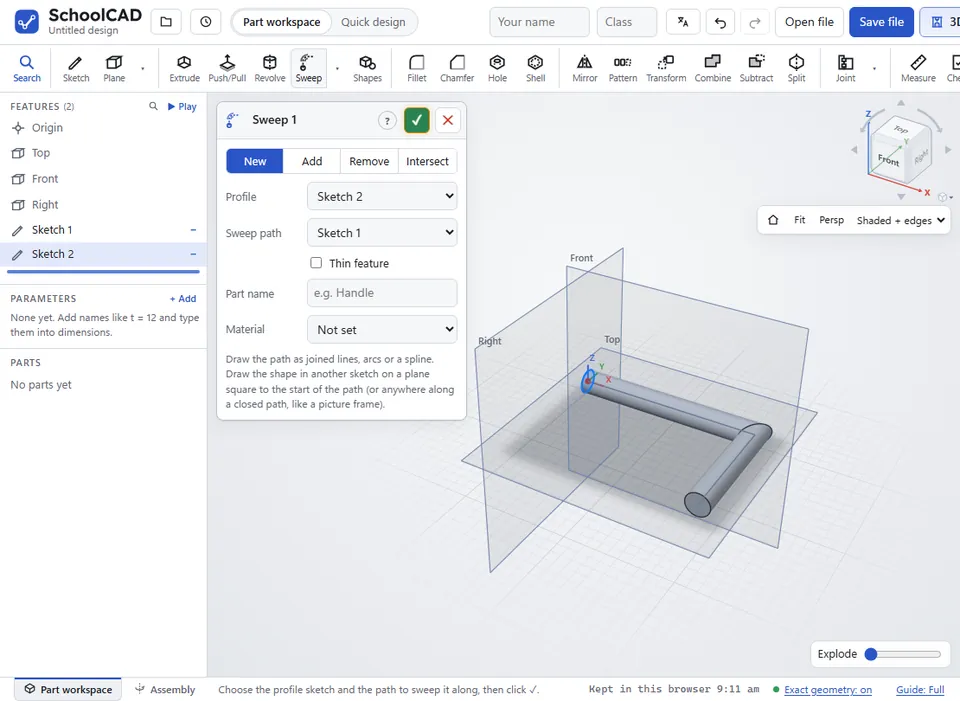
- Click Sweep, or press W. The newest sketch is used as the Profile, and the one before it as the Sweep path.
- Check that Profile and Sweep path are the right way round.
- Choose New, Add, Remove or Intersect.
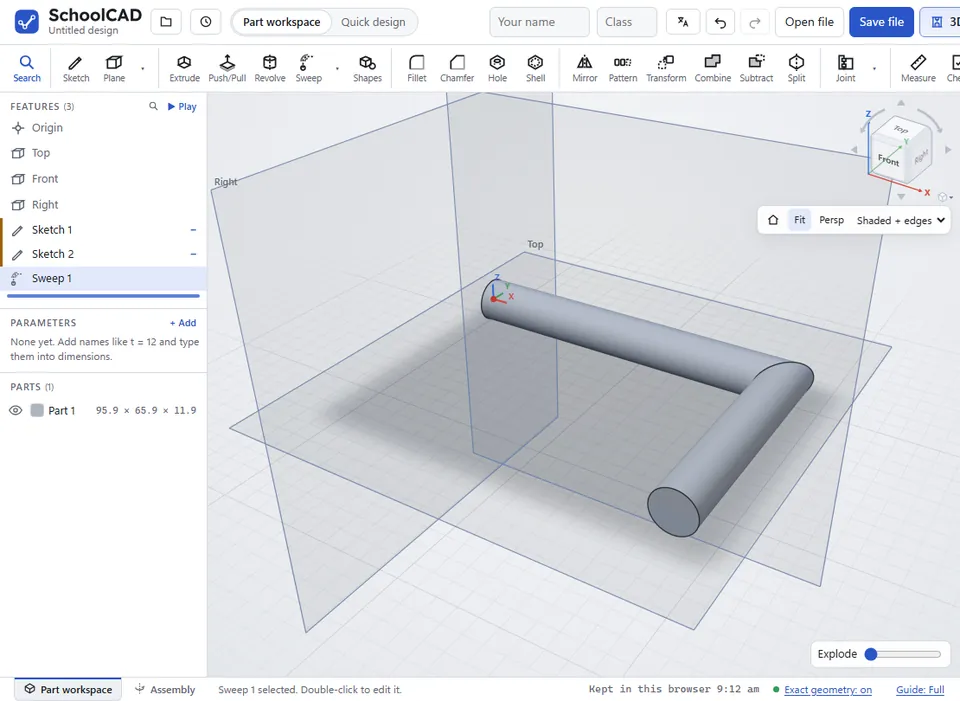
- Check the preview, then click ✓ or press Enter.
Step by step#
Here is the whole thing on a bent rod, from the SchoolCAD video tutorial.
Options#
| Option | What it does |
|---|---|
| New | Makes a new part. Type a Part name (such as Handle) and choose its Material. |
| Add | Joins the sweep onto the parts it meets. |
| Remove | Cuts the sweep out of the parts it meets, such as a groove. |
| Intersect | Keeps only the space where the sweep and the part overlap. |
| Profile | The sketch with the closed shape. |
| Sweep path | The sketch with the lines, arcs or spline to follow. |
| Thin feature | Sweeps the profile's lines as a wall of a set Thickness instead of a closed shape: draw an L for an angle, or a U for a channel, and sweep it along the path. ⇅ and Mid-plane choose the side of the lines, as in Extrude. Sweep ticks it for you when the profile is only lines. (Onshape: Thin · SOLIDWORKS: Thin Feature) |
| Twist | In Advanced mode: how many degrees the profile turns about the path from start to end, evenly along it, such as 90° for a twisted handle or 720° for a rope-like rail. 0 is no twist. A closed path takes whole turns (360°, 720° …) so the ends meet. (SOLIDWORKS: Twist along path) |
| Merge scope | For Add, Remove and Intersect. Merge with all ticked: it works on every part it meets. Untick it to tick just the parts to change. |
Tips#
- Sharp corners in the path are mitred, like the corners of a picture frame. On a closed path, the shape can sit anywhere along it.
- For smooth bends, like a bent steel rod, round the corners of the path with a sketch fillet.
- Construction lines in the path sketch are left out, so you can use them to help you draw.
- If the start of the path is not on Top, Front or Right, make a Plane there to draw the shape on.
- To change a sweep later, double-click it in the feature tree.
If it does not work#
- The profile lies along the path. Draw the profile on a plane square to the start of the path (for a path on Top, use Front or Right).
- The sweep has no volume. Put the profile across the start of the path.
- The path branches. A path must be one chain of lines with no forks. Delete the extra line, or trim it.
- The path has separate pieces. Join them into one chain. Drag the line ends onto each other.
- A sweep round a closed path can only twist by whole turns (360°, 720° …), so its ends meet. Type a whole number of turns for Twist, or 0.
- The profile and the path must be different sketches. Choose a different sketch in Profile or Sweep path.