Parameters
Named sizes, like t = 12, that you can type into any dimension or box. Change one number and the whole design rebuilds.
- ParametersParameters panel: + Add
| SchoolCAD | Onshape | Fusion | SOLIDWORKS |
|---|---|---|---|
| Parameters | Variables | Change Parameters | Global Variables |
A parameter is a size with a name, such as t = 12 for the thickness of your timber. You type the name t into a dimension or a feature's box instead of the number. If you change to 19 mm board later, you change t once and every part that uses it updates.
Parameters are in the Parameters list on the left, under the feature tree.
How to add one#
- Click + Add beside Parameters. A new parameter appears, ready to rename (the first one is
t = 12). - Type its name, such as
t,Workerf. - Click the box after =, type its value, such as
12, and press Enter.
Using a parameter#
- In a sketch: with Dimension, type the name instead of a number. The dimension then shows
t = 12. - In a feature: type the name into a box, such as an extrude's Depth.
- In a Box: its width, length, height and Position X, Y and Z all take names and sums, so a cabinet of boxes can be sized from a few parameters (
W - 2*twide, at XW/2). - In a sum:
2*t,W/2or600-2*t. You can use + − * / and brackets anywhere you type a size. - π: type
piorπfor the circle number, such aspi*66for the way round a 66 mm can (a parameter you callpiis used instead).
A parameter's value can be a sum that uses the parameters above it, such as iw = W/2 - t. When the value is a sum, the number it works out to is shown beside it.
Configurations#
When you have parameters, a Configuration list appears at the top of them. A configuration is a named set of sizes, such as Tall or Wide, so one design can come in several sizes.
- Save one: set the parameters, choose + Save these sizes as… in the list, and type a name.
- Use one: choose it in the list. The design is rebuilt with its sizes.
- Delete one: choose it, then choose Delete "…". The sizes stay as they are.
Renaming and deleting#
Click a parameter's name and type a new one: every dimension and box that uses it changes to the new name. Click × to delete a parameter.
Step by step#
Here is the whole thing on a shelf, from the SchoolCAD video tutorial.
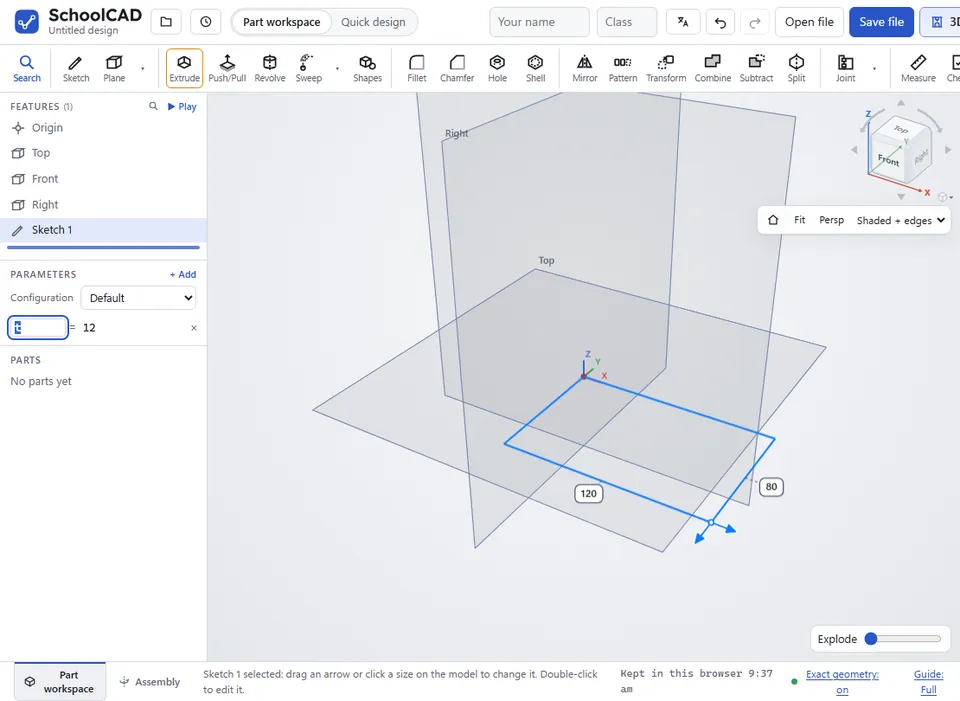
t = 12.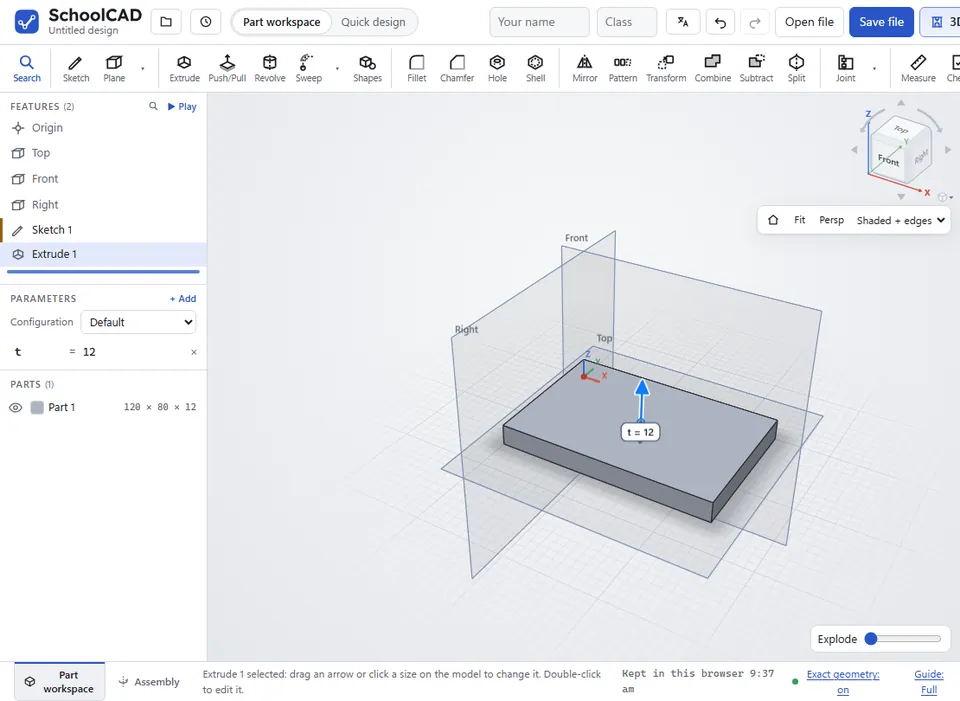
t, instead of a number, such as an extrude depth.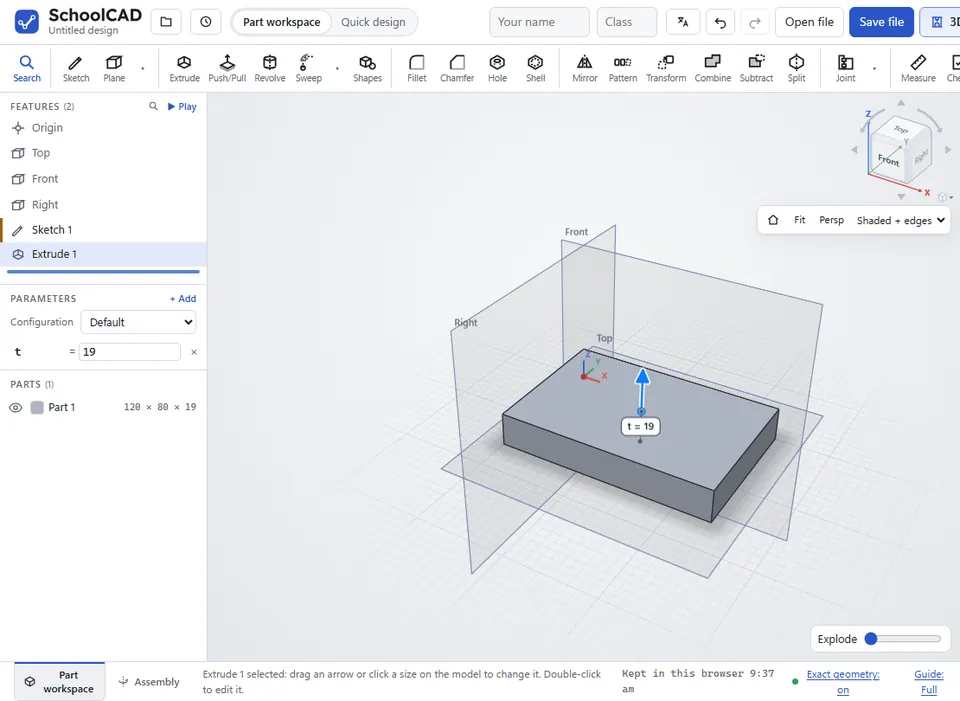
Tips#
- Only names stay linked. If you type
24where you mean two thicknesses, it stays 24 whentchanges, so type2*tinstead. - Use short, clear names:
tfor thickness, andW,DandHfor width, depth and height. - SchoolCAD works in millimetres, but you can type a unit after a number and it is changed to mm:
2 inor5 cm.
If it does not work#
- The value turns red, or shows ! Point at it to read the problem. It is usually a typing mistake, or a name that is not in the table.
- Depth: "t" is not in your parameters table. A feature uses a name that is not in the table, perhaps because the parameter was deleted. Add the parameter again, or edit the feature.
- "W" is not in your parameters table, but W is there. A parameter can only use the parameters above it in the list.
- Names start with a letter and use letters, numbers or _ (no spaces). Change the name, for example to
board_tinstead ofboard t. - That name is already used. Each parameter needs its own name.