Trim, extend and split
Remove the piece of a line, arc, circle or ellipse between crossings with Trim, stretch a line to meet the next one with Extend, or break a line or arc in two with Split.
- Trim XSketch toolbar
- ExtendSketch toolbar: under the ▾ next to Trim
- SplitSketch toolbar: under the ▾ next to Trim
| SchoolCAD | Onshape | Fusion | SOLIDWORKS |
|---|---|---|---|
| Trim | Trim | Trim | Trim Entities |
| Extend | – | Extend | Extend Entities |
| Split | Split | Break | Split Entities |
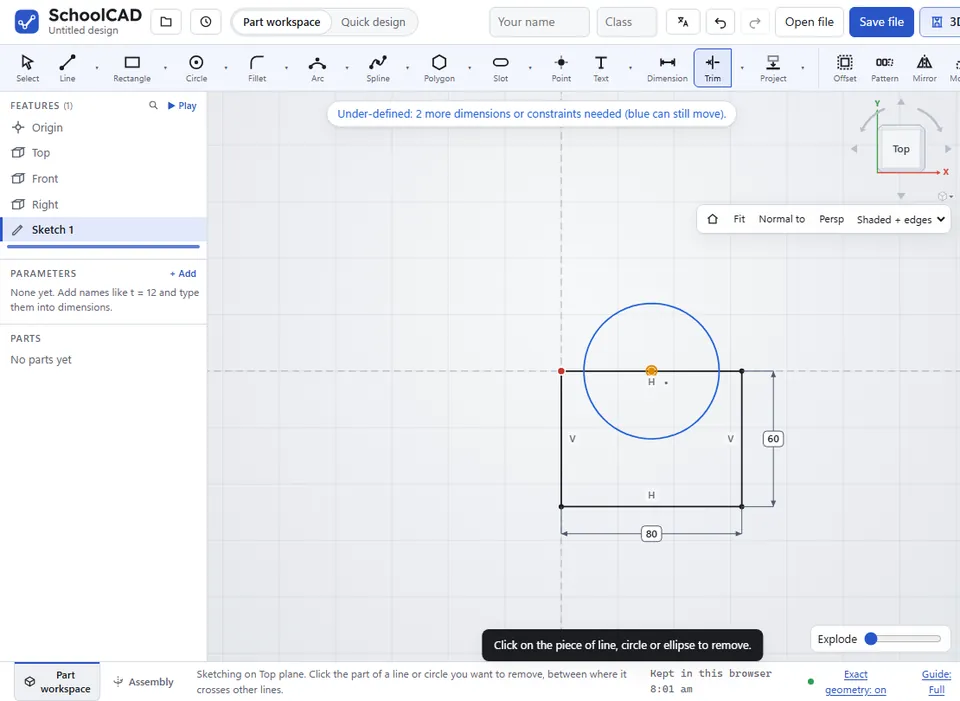
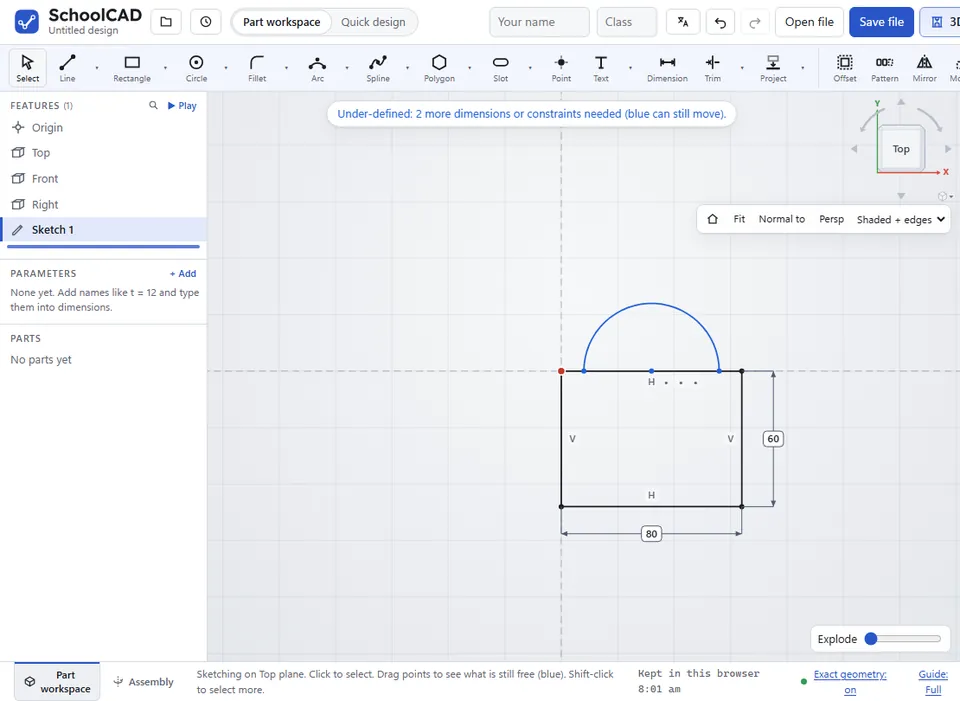
When you draw shapes that overlap, some pieces of line get in the way. Trim removes them, so you are left with one clean outline. For example, draw a circle overlapping the top of a rectangle, then trim the pieces in the middle to get a bookend with a round top. Extend does the opposite: it stretches a line until it meets the next line, arc or circle.
Trim#
- In a sketch, click Trim, or press X.
- Click the piece of line, arc, circle or ellipse you want to remove. The piece between the nearest crossings on either side of your click goes.
- Keep clicking pieces. Press Esc when you have finished.
- A line that crosses nothing is deleted completely.
- A circle must cross other lines in at least two places to be trimmed. Otherwise it is deleted.
- A trimmed ellipse becomes an elliptical arc. Trim it again to shorten it or split it.
- The new ends stay joined to the lines they were cut at.
- Crossings with construction (dashed) lines do not count.
Extend#
- Choose Extend from the ▾ next to Trim.
- Click near the end of the line you want to stretch.
- The line grows until it meets the next line, arc, circle or ellipse in that direction, and stays joined to it.
Only a loose end can be extended, not an end joined to another line. If the line has a length dimension, it changes to the new length.
Split#
Split breaks a line or an arc in two where you click, like Split in Onshape and Split Entities in SOLIDWORKS: for example, to give one side of a shape a notch, or to dimension part of a line.
- Choose Split from the ▾ next to Trim.
- Click the line or arc where it should break.
The two pieces share a new point. A line's pieces stay in line (and horizontal or vertical if it was); its length dimension goes, so dimension the pieces instead. An arc's pieces keep its centre and radius. A circle has no ends, so it cannot be split: trim it, or draw two arcs.
Step by step#
Here is the whole thing on a bookend with a round top, from the SchoolCAD video tutorial.


Tips#
- You do not always need to trim. Lines that cross split a sketch into separate shapes, and Extrude lets you choose which of them to use. Trim when you want one clean outline.
- Trim works on lines, arcs, circles, ellipses and elliptical arcs, not on splines.
- Trimmed the wrong piece? Press Ctrl+Z.
If it does not work#
- Click on the piece of line, circle or ellipse to remove. You clicked empty space, a point or a spline.
- Click near the end of a line to stretch it. Extend only works on lines.
- There is nothing for this line to meet that way. Nothing crosses the path of the line in that direction.
- That end is joined to another line. Extend a loose end.