Mirror
Make a mirror-image copy of parts across a plane, or repeat a cut, hole or extrude on the other side, so both sides of a symmetric design match.
- Mirror MPart workspace toolbar
| SchoolCAD | Onshape | Fusion | SOLIDWORKS |
|---|---|---|---|
| Mirror | Mirror Part mirror Feature mirror | Mirror | Mirror Mirror Body Mirror Feature |
Many designs have two sides that match: the two ends of a step stool, the sides of a bookcase, the left and right of a phone stand. Model one side, and Mirror makes the other side for you. The copy is a new part: a mirror image of the first, like its reflection in a mirror.
The copy stays linked to the part it came from. Change the size of the first side, and the copy changes too.
Mirror can also repeat features on the other side, in the same part: a cut, a hole, an extrude or a revolve. Cut a slot on one side of a box, and Mirror cuts the same slot on the other side. This is Feature mirror in Onshape and Features to Mirror in SOLIDWORKS; mirroring whole parts is Part mirror (SOLIDWORKS: Bodies to Mirror).
To mirror lines and shapes inside a sketch, use the sketch Mirror instead.
How to use it#
- Click Mirror, or press M. Parts you selected first are already ticked.
- Under Parts to mirror, tick the parts, or click them in the view.
- Choose the Mirror plane.
- If the middle of your design is not on the origin (the point 0, 0, 0), type an Offset.
- Check the preview, then click ✓.
To mirror features: select the cut or hole in the feature tree first and click Mirror (or choose Feature at the top of the panel), then tick the Features to mirror.
Step by step#
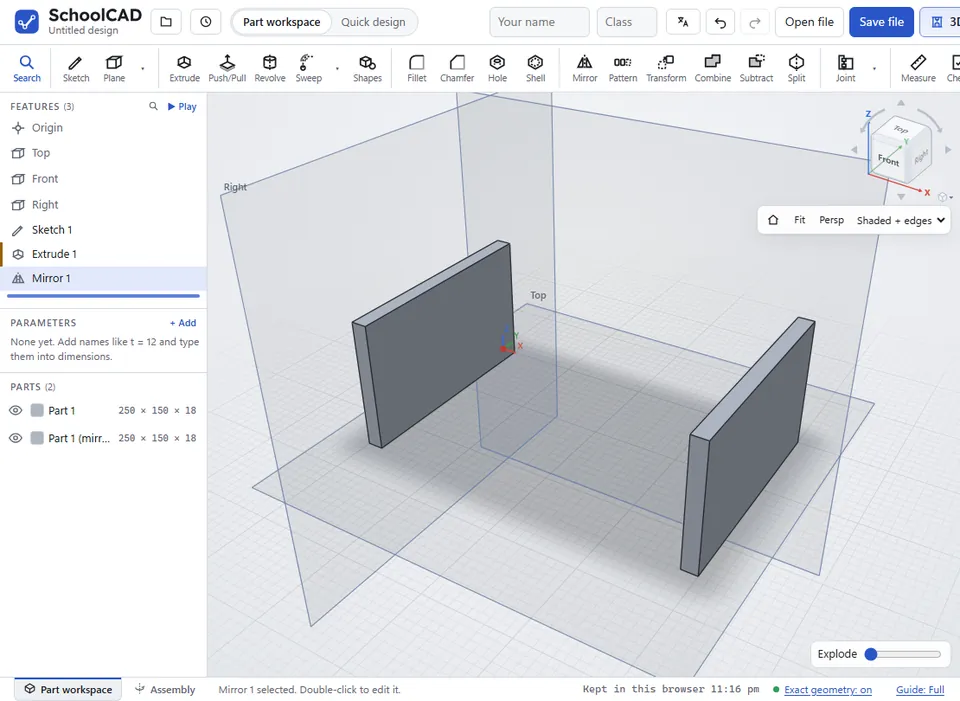
Here is the whole thing on one end of a step stool, from the SchoolCAD video tutorial.
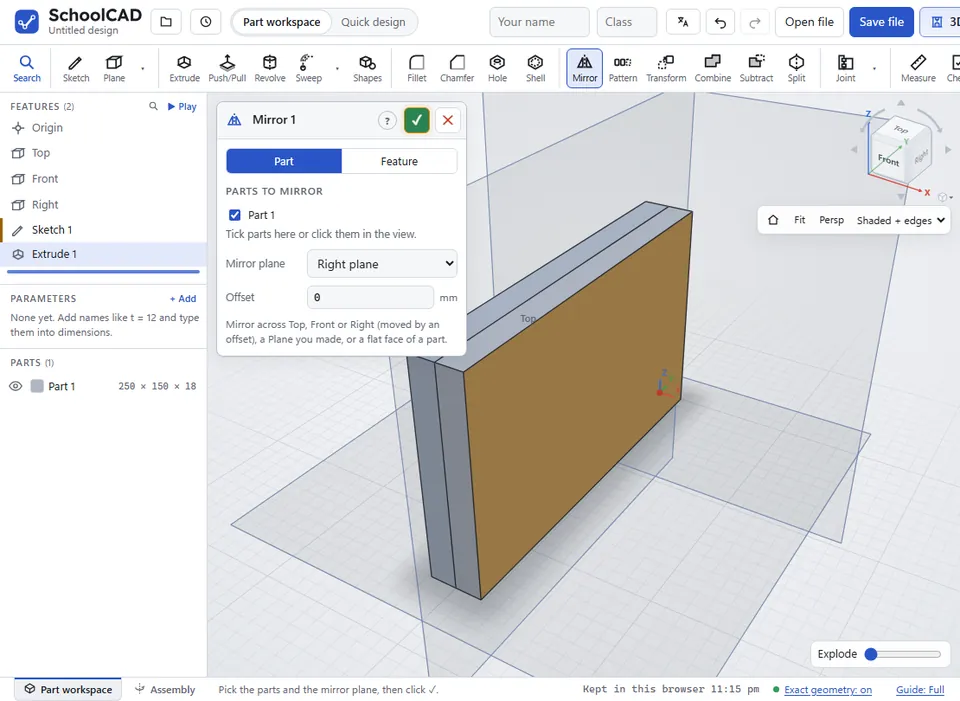
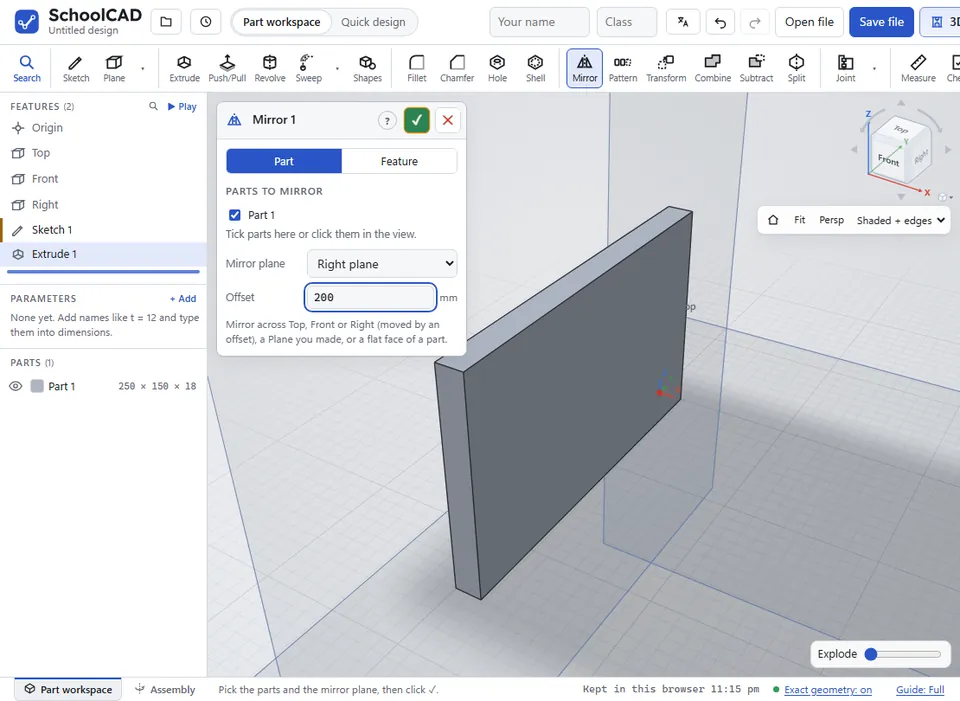
200.
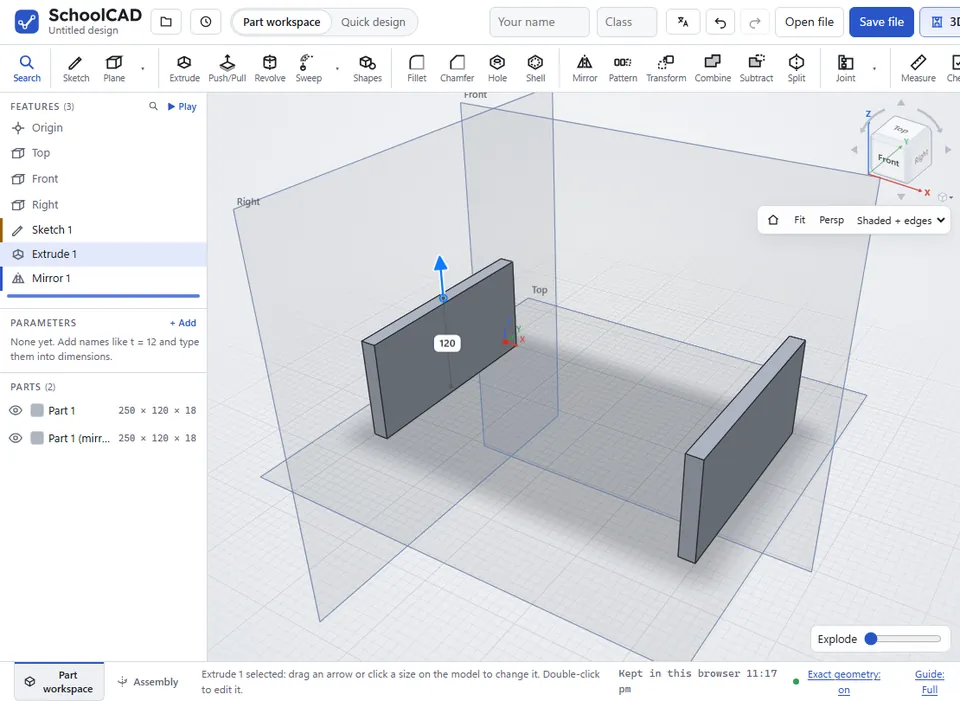
Options#
| Option | What it does |
|---|---|
| Part or Feature | Part copies whole parts as new parts. Feature does extrudes, cuts, revolves and holes again on the other side, in the parts they were made in. |
| Parts to mirror | For Part: the parts to copy. Tick them, or click them in the view. |
| Features to mirror | For Feature: tick the features to do again on the other side. |
| Mirror plane | What to mirror across. Right plane flips left and right, Front plane flips front and back, and Top plane flips top and bottom. You can also choose a plane you made, or A flat face (click it) and click a flat face of a part: the mirror goes across the plane that face lies in (Onshape and SOLIDWORKS: a planar face as the mirror plane). |
| Offset | Top, Front and Right planes only: moves the plane this many mm before it mirrors. |
Tips#
- Symmetric designs are easiest when their middle is on the origin. Start with a Centre rect on the origin, then mirror across the Right plane with no offset.
- If one side starts at the origin, make the offset half the width. For a bookcase 600 mm wide with its left side at the origin, mirror the left side across the Right plane with an Offset of
300. - To mirror across a face of a part, choose A flat face (click it) as the Mirror plane and click the face. The mirrored copy then sits against that face, such as the second half of a table.
- To mirror from one side of a board to the other, make a Plane with Plane type set to Mid plane, between the board's two sides. The plane stays in the middle if the board gets thicker.
- The copy has the same material, and its name ends in (mirror), such as Left side (mirror). Double-click it in the parts list to rename it, such as Right side.
- Mirror copies the part as it is at that point in the feature tree. If you add holes to the first side later, drag the Mirror feature below them in the tree, so the copy gets the holes too.
If it does not work#
- Choose the part(s) to mirror. Tick a part, or click one in the view.
- The copy sits on top of the first part, or in the wrong place. Change the Offset, or choose a different Mirror plane. Check shows parts that overlap.
- The mirror plane (Plane 1) comes after this feature. Drag Plane 1 above it. Mirror can only use a plane made before it in the feature tree.